

Issues generating Firmware image with FWIMG_STATE_NEW - SBSFU postbuild.sh
Hello all,
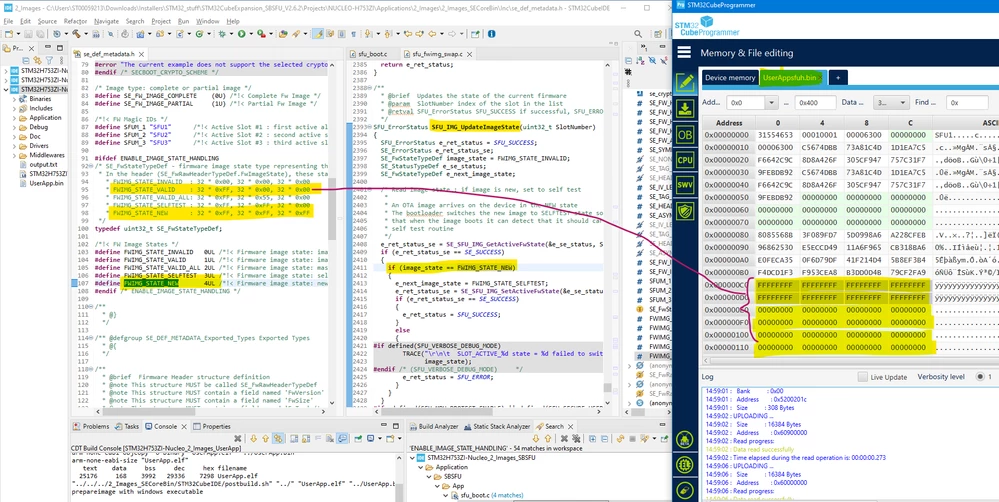
I am using the SBSFU v2.6.2 on STM32H753 - (2 slots based) for a few months now, and am trying to enable the Firmware Rollback feature right now. During this attempt, I had enabled ENABLE_IMAGE_STATE_HANDLING as required in SE, SBSFU and UserApp projects and then built all of them. I see in the SFU header region of the User App binary that gets generated finally and find that the parameter FwImageState is filled with FWIMG_STATE_VALID whereas I expected FWIMG_STATE_NEW. (Please refer screenshot below)
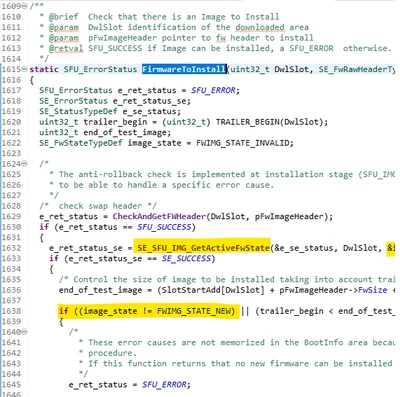
Due to this, I am failing to update to Self-Test state at SFU_IMG_UpdateImageState(), while launching from Active slot, as well as during the Firmware installation process at FirmwareToInstall(), as it fails to recognize the new image.
At SFU_IMG_UpdateImageState()
At FirmwareToInstall()
I use the following command in the postbuild.sh that generates the header:
command=$cmd" "$prepareimage" header -m "$magic" -k "$ecckey" -p 1 -r 44 -v "$version" -f "$bin" -t "$sign" -o "$offset" "$headerbinI wanted to know how to generate a firmware image with FWIMG_STATE_NEW state in the SFU header.
Also, how is this usually done professionally?