It depends on your toolchain used for build the project. I think the most default one for TouchGFX project is TouchGFX Designer itself (simulator builds and even device builds) and STM32CubeIDE.
They have their own separate build configurations in various places.
First the easier one to configure, STM32CubeIDE:
You will find its include directories in project properties, just look at the picture:
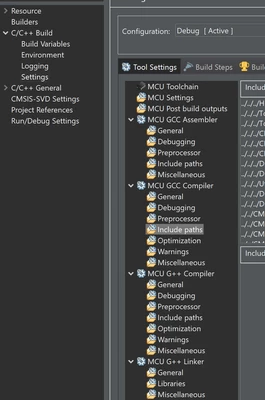
As you can see, the paths there all start from "../../..". This is not a bug, the paths are relative to the project file directory. And the file is often not in a project's root directory. Just look at them and provide similar paths to your own project directories, the directories that contain include files.
You have separate configuration for assembler, C compiler and C++ compiler. As you use TouchGFX - you probably want to set your include directories both for C and C++.
Before you touch the include directories, be sure to target ALL CONFIGURATIONS:
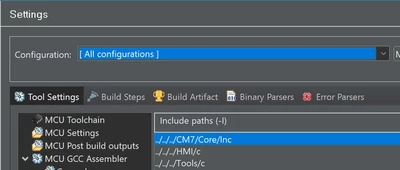
Otherwise, you will have different include directories for debug and release builds. And it's not what most users want.
If you need specific C/C++ files compiled in your build - just include them in Project Explorer, either by linking files or linking a directory that contains the file.
I usually do it with drag & drop, because this gives a nice menu asking me whether I want to link individual files or do I want to link a folder. Those links are called virtual files or virtual folders. Technically they work similarly to Windows shortcuts, but they are usually created as relative to the main project file path. Every ".c" or ".cpp" file linked there will be compiled, unless you explicitly check not to compile it in the file properties tab.
Now the TouchGFX Designer itself. I usually don't use it to make device builds. It's too slow and clumsy for that, STM32CubeIDE is way more convenient. But I do use Designer's Simulator, because it's very fast way of testing the UI alone. The Simulator is just part of your code (UI) compiled for Windows. So - Designer has 2 build toolchains for compiling either the UI alone for Windows or the whole project for the target device. They have some common and some separate configuration files.
First you need to locate your TouchGFX project directory, usually named "TouchGFX". In 2 core MCU templates, it would be in CM7 directory. Inside it find `config/gcc` directory, that contains `app.mk` file.
In `app.mk` I usually add my own `cflags`, like this for example:
`user_cflags := -DUSE_BPP=16 -std=gnu++17 -Wno-unknown-pragmas`
Then I create my own file containing my custom configuration (additional files and folders) as `additional.mk` file:
# HMI TouchGFX extended Makefile configuration
#
# Include this file in Makefile with
# `include $(application_path)/config/gcc/additional.mk`
# before the line containing `export ADDITIONAL_SOURCES` of `TouchGFX/simulator/gcc/Makefile`
#
# Variables available:
# 	include_paths
#	c_source_files
#	cpp_source_files

ADDITIONAL_INCLUDE_PATHS := ../../Tools ../../HMI
ADDITIONAL_SOURCES := ../../Tools/TimeSpan.cpp
ADDITIONAL_LIBRARY_PATHS :=
ADDITIONAL_LIBRARIES :=
Then get back one directory, find the `simulator` directory, enter `gcc` subdirectory and open the `Makefile` file.
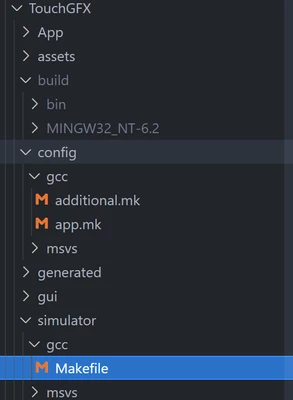
Place `include $(application_path)/config/gcc/additional.mk` just before the `export ADDITIONAL_SOURCES`..., look at how it looks in mine:
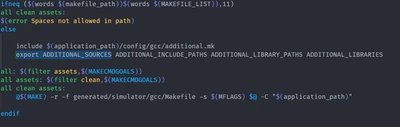
BTW, the paths in `additional.mk` files are separated with space. This should work, if it doesn't - try messing around with relative paths like "../.." or "../../.." - it's easy to make a mistake there.
That's it.
As for the other tools, look for makefiles. And be careful, because they are often generated, so they might get overwritten. TouchGFX usually doesn't overwrite the Simulator make file, but it might happen so you better back up your changes somewhere.