

JPabl.1
Associate III
October 16, 2024
Solved

How to update text screen based on another screen input

  • October 16, 2024
  • 2 replies
  • 903 views

Hi there Touchgfx team!


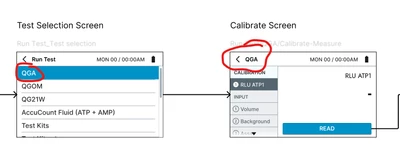
I have these screens 
JPabl1_0-1729085879318.png

Every "calibrate screen" header text is based on the test selected on "test selection screen". 

How can I update the text on the header based on the user selection? 

Thanks a lot in advance

Best answer by Mohammad MORADI ESFAHANIASL

Oh I see, I thought you only have one screen.
You can use the model-view-presenter (MVP) to transmit data between your screens or with other tasks. In Tutorial 3 (Section: Saving Data) this is explained how to save data and retrieve it in different screens.

You can also read about the concept of a Screen here, so you better understand how the MVP works in TouchGFX.  

2 replies

ST Employee
October 16, 2024

Hello @JPabl.1 ,

You can follow Tutorial 6 that is available on the TouchGFX documentation website to help you. You can find plenty of useful tutorial documents and videos on TouchGFX Academy,

I hope this helps you!

If you have more questions, don't hesitate to ask!

JPabl.1
JPabl.1Author
Associate III
October 16, 2024

Hi @Mohammad MORADI ESFAHANIASL thanks for the quick reply. 


I understand how to update text wildcard in the same screens, but I'm looking for is how to send a text from one screen to another one. 


My "test selection screen" will have 20+ different elements. I created those using a custom container. Its working great. 

Then, everytime one of those elements is clicked, I jump into "calibrate screen", but I need the header text to be the same one as the clicked element. 

For example, when the user clicks the element "QG21W", I need the header on the "calibrate screen" to be "QG21W". 

I don't want to create 20 different screens, just to pass the argument to the new screen. Is that possible? 

ST Employee
October 17, 2024

Oh I see, I thought you only have one screen.
You can use the model-view-presenter (MVP) to transmit data between your screens or with other tasks. In Tutorial 3 (Section: Saving Data) this is explained how to save data and retrieve it in different screens.

You can also read about the concept of a Screen here, so you better understand how the MVP works in TouchGFX.