connoisseur_de_mimi
Associate III
September 1, 2025
Solved

P-NUCLEO-WB55.USBDongle and BLE_TransparentModeVCP_reference.hex

  • September 1, 2025
  • 2 replies
  • 232 views

Hi, 


I'm trying to use my P-NUCLEO-WB55.USBDongle with the BLE_TransparentModeVCP_reference.hex firmware.

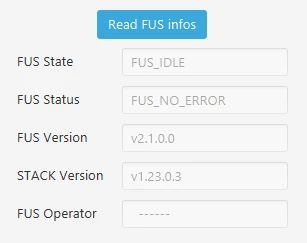
Following the documentation I have updated FUS and installed the latest (V1.23.0)  stm32wb5x_BLE_Stack_full_extended_fw.bin wireless firmware: 

connoisseur_de_mimi_2-1756734662086.png


connoisseur_de_mimi_0-1756734481861.png


Afterwards, I flashed BLE_TransparentModeVCP_reference.hex, put SW2 into run mode and reconnected the dongle. It shows up in device manager as a COM Port, but connecting with STM32CubeMonitor-RF fails:
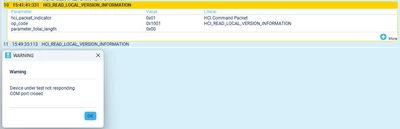
connoisseur_de_mimi_1-1756734603052.png


I also tried building the TransparentModeVCP Firmware from source, but it fails the same way. 

What am I doing wrong?


Best answer by STTwo-32

Hello @connoisseur_de_mimi 

Could you please follow those steps:

  1. Put the dongle to the boot mode (SW2).
  2. Connect the dongle to the STM32CubeProgrammer V2.20.0 and update the FUS using the stm32wb5x_FUS_fw.bin and the stack using the stm32wb5x_BLE_Stack_full_extended_fw.bin.
  3. Upload the BLE_TransparentModeVCP on the dongle using the STM32CubeProgrammer.
  4. Click on the "Start Wireless Stack" button.
  5. Disconnect the dongle and set the SW2 to run mode.
  6. Open the STM32CubeMonitorRF V2.18.0 and set the Com port and the baudrate to 115200.
  7. Click on "connect" button.

Best Regards.

STTwo-32

2 replies

STTwo-32
STTwo-32Best answer
Technical Moderator
September 1, 2025

Hello @connoisseur_de_mimi 

Could you please follow those steps:

  1. Put the dongle to the boot mode (SW2).
  2. Connect the dongle to the STM32CubeProgrammer V2.20.0 and update the FUS using the stm32wb5x_FUS_fw.bin and the stack using the stm32wb5x_BLE_Stack_full_extended_fw.bin.
  3. Upload the BLE_TransparentModeVCP on the dongle using the STM32CubeProgrammer.
  4. Click on the "Start Wireless Stack" button.
  5. Disconnect the dongle and set the SW2 to run mode.
  6. Open the STM32CubeMonitorRF V2.18.0 and set the Com port and the baudrate to 115200.
  7. Click on "connect" button.

Best Regards.

STTwo-32

connoisseur_de_mimi
Associate III
September 2, 2025

I updated to ST32CubeProgrammer 2.20 (from 2.13) and repeated all the steps you listed. It seems to work correctly now. Step 4 was not possible on 2.13 (button was greyed out) so that may have been the issue. 

Thanks for your help!