
ST Employee
October 13, 2025

NEW STM32CubeIDE for Visual Studio Code: from prerelease to official release

  • October 13, 2025
  • 18 replies
  • 29288 views

Since May, we have been offering a prerelease version (3.x) of the STM32CubeIDE for Visual Studio Code extensions. This version gave early adopters access to the latest features and improvements. 

These enhancements have now been merged into the official release version (2.x), marking a key milestone in the deployment of STM32CubeIDE for Visual Studio Code.
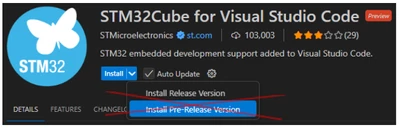
Screenshot 2025-10-13 115219.png


What is changing for developers? 

  • Release tracks are merged: the prerelease, which is version 3.x of our extensions, is merged back into the 2.x release track. Moving forward, all developers will enjoy one single 3.x version, integrating all extensions and main packages. 
  • Automatic user migration: all VS Code users previously working with the 2.x release track will migrate to the 3.x version of our extensions. We have replaced the complete tool architecture, but we expect minimal end-user disruption. 
  • Transition to VS Code extension pack: developers previously relying on the 2x version, and who used to have a single STM32 for Visual Studio Code extension, will now find around fifteen STM32 extensions. This extension split paves the way to greater installation flexibility and improved maintainability. 
  • Transition from CubeCLT to cube bundle manager + CMSIS-PACKs: the new VS Code extension version removes the CubeCLT dependency. Instead, we introduce the cube bundle manager that automatically downloads, installs, and updates CLI tools and STM32 device support. Developers no longer need to install a full new CubeCLT package to access the latest compiler or benefit from the latest STM32 device support. CubeCLT will later be deprecated. 
  • Debugging improvements: version 3.x uses the ST custom DAP instead of Cortex® debug DAP. Developers will need to create new launch configurations to access new debug features like improved RTOS debug. 

Why this transition? 

  • Moving from prerelease to release reflects the natural evolution from beta to stable software. 
  • Version 3.x offers enhanced installation workflows, better update management, broader STM32 MCU support, and improved maturity. These improvements are now available in the official release (2.x). 
  • Although some initial bugs remain and several advanced STM32CubeIDE debug features are yet to come in Visual Studio Code, version 3.x provides a strong foundation for future development. 


The prerelease track may return to a smaller scope to enable early access to new features. 

For help with the migration, download the user guide available directly in STM32CubeIDE for Visual Studio Code. 

Your feedback is essential in shaping the future of STM32Cube for Visual Studio Code as it allows us to tailor it precisely to your requirements. We look forward to reading your ideas and questions on our community forum! 

Additional resources

First published on Oct 13, 2025

18 replies

PHryn
Associate III
October 24, 2025

@mattias norlander 

Heads up. You only not making mistakes if you do nothing.  But, What I would like to do more community driven development this tool - in my dream do it on github or something like that and have direct community feedback what we are expecting and track all issues


iw2ndh
Associate
October 26, 2025

I code in ST and Microchip, vscode and IDE both.

I would like to have in ST an AI extension like Microchip with vectorized datasheet, a REAL Game changer.

Hope this help,

Luca 

mattias norlander
ST Employee
October 27, 2025

@AKNTA , today there is no project converter tool to help you move from CubeIDE to VS Code.

VS Code relies on CMake. So the job to port the project is manual... We are planning a project converter from CubeIDE to VS Code, but it is not around the corner. And If you are on an H7 dual-core device, there may be limitations as to how much automatic porting we can do with a tool...

If you existing project is managed by CubeMX, then I would download CubeMX stand-alone. Make a back-up of the ioc-file and open it in MX stand-alone. Then change the proejct generator to CMake and try to generate a CMake structure that can work in VS Code. Then lift over your use code and user build settings into this CMake project... The approach will require some knowledge and patience... Apologies for that!

mattias norlander
ST Employee
October 27, 2025

@PHryn ,

A community driven development tool would be nice. But in the Arm Cortex-M world, Ecosystem and Tools is a competitive edge. Silicon vendors are generally unwilling to open-source their Tool investments because the up-side of getting community contributions is seen as neglectable vs the down-side of share all code openly with competition.

As a software developer I disagree with my own logic. :)

And this is a sensitive topic which I can/will not dive deeper into in a public forum.

tejo
Associate II
October 29, 2025

And for TouchgGFX projects how should I do?

From the tutorial video you published earlier, the project is created in CubeMX and Toolchain/IDE changed to CMake but when I create a project in Touchgfx Designer and generate the code from there, this field is not editable.

I imagine I should always create project in CubeMX side and then enable TouchgGFX Generator inside MX. Am I right? I've done than but it didn't assume the same configurations. In designer the screen was 10% of usual. Needed extra configuration.

What is the right course of action for Touchgfx projects using VSCode extension?

Thank you so much for taking the time.

Associate
November 4, 2025

I hit a similar issue as @MAdle.1 on Ubuntu 24.04 with Cube for VS Code 3.6.4: Serial Monitor couldn’t open /dev/ttyACM0 and debug wouldn’t connect.

Installing libusb-1.0 and the STSW-LINK007 udev rules fixed both.

Posting the full fix here for visibility: [Linux] STM32Cube for VS Code: /dev/ttyACM0 + Debugging issues

Associate III
January 8, 2026

Hi
Where do I download STM32CubeIDE for Visual Studio Code?
Rgds

mattias norlander
ST Employee
January 8, 2026

Hi @techdesk,

  1. You start by going to Microsoft website to download and install VS Code: https://code.visualstudio.com/download
  2. From inside VS Code open the Extensions activity and search for "STM32CubeIDE for Visual Studio Code"
    mattiasnorlander_0-1767878279714.png


Note1: There are many extension named "STM32Cube ..." with the ST butterfly logo coming from ST. This may seem confusing but there is only one which is the full "extension pack" and it has the name "STM32CubeIDE for Visual Studio Code".

Note2: The extension installation will also trigger download/installation of CLI tools (so call bundles), for example, some build tools and debug tools.


I hope this answers to your question.
There is an installation guide here. But it does not cover the installation of VS Code itself, and it needs a slight update... I will add tickets for the issues I spotted.

Kind regards, Mattias