Cwoo.1
Associate II
April 6, 2026
Solved

BSP not included when generating STM32F769I-DISCO project with CubeMX

  • April 6, 2026
  • 1 reply
  • 123 views

Hello.
I created a project for the STM32F769I-DISCO board using CubeMX.

I am trying to follow an LVGL example, but the example uses BSP-based libraries, and they are not working in my project. After checking, I found that there is no BSP included anywhere in the generated project.

From what I understand, when selecting a board in CubeMX, the BSP should normally be included automatically. However, in my case, it is not.

I tried downloading the STM32F769I-DISCO BSP from GitHub and manually copying it into the Drivers folder. However, this caused many build errors, possibly due to missing dependencies or incomplete integration, so I reverted those changes.

Could you please advise how to properly include or enable BSP for this board when using CubeMX?

Thank you.
Best answer by mƎALLEm

Hello,

The BSP is not generated with CubeMx for this board for the moment. Some boards are supported and CubeMx asks the user to enable it at the project creation phase.

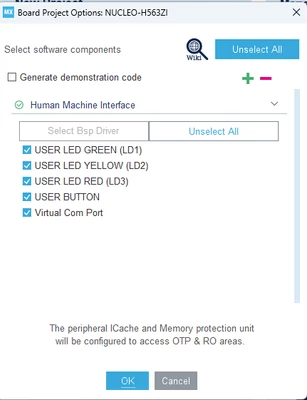
Example, for Nucleo-H563ZI, this message is shown:


Nucleo-H5.png

And at the left side you have Bsp option:

screenshot.png

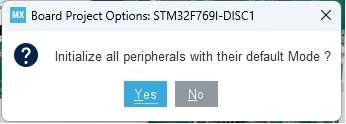
Which is not the case for STM32F769I-DISCO where you have only this message:

screenshot.png

And the peripherals are configured by default by CubeMx.

You need to add the BSP drivers yourself to the IDE and manage the errors.

1 reply

mƎALLEm
mƎALLEmBest answer
Technical Moderator
April 6, 2026

Hello,

The BSP is not generated with CubeMx for this board for the moment. Some boards are supported and CubeMx asks the user to enable it at the project creation phase.

Example, for Nucleo-H563ZI, this message is shown:


Nucleo-H5.png

And at the left side you have Bsp option:

screenshot.png

Which is not the case for STM32F769I-DISCO where you have only this message:

screenshot.png

And the peripherals are configured by default by CubeMx.

You need to add the BSP drivers yourself to the IDE and manage the errors.

"To give better visibility on the answered topics, please click on ""Accept as Solution"" on the reply which solved your issue or answered your question."