Associate III
February 1, 2024
Solved

Nx_Iperf_A7 unable run TCP test both client/server and UDP client on STM32MP135F-DK

  • February 1, 2024
  • 4 replies
  • 2757 views

Hello I just tried tu run Nx_Iperf_A7 demo

As in readme I fellow-up all steps

1) DDR_Init_A7 done (blue LED blinks)

2) Nx_Iperf_A7 demo - compiled, and stared debug... and running code

In terminal I got only "Nx Iperf application started.." but no info about IP address, etc. no more logs... Is it normal ? Must I to set something more to view them ?

I setup with static IP address 192.168.0.2 instead of using DHCP

In terminal I got only "Nx Iperf application started.." but no info about IP address, etc. no more logs... Is it normal ? Must I to set something more to view them ?

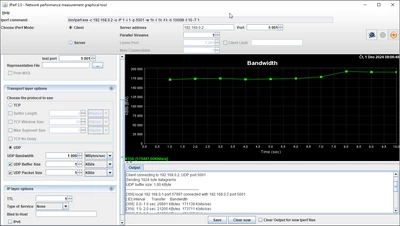
and I can only test UDP server mode (IPERF mode client)  show on picture:
ravo_0-1706771214057.png

All others variants end with connection errors...

I also read suggested IPERT documentation and setup as suggested in application readme.html at end of text. "Run the [iperf tool] by following steps described in this link https://docs.microsoft.com/en-us/azure/rtos/netx-duo/netx-duo-iperf/chapter3" But it did not helped me...

What could be wrong, or it is not supported in this demo ?


Thanks in advance.

Regards

Radim
 

Best answer by DBELL.1

Hello @ravo,

First the ethernet cable must be connected and a terminal launched.

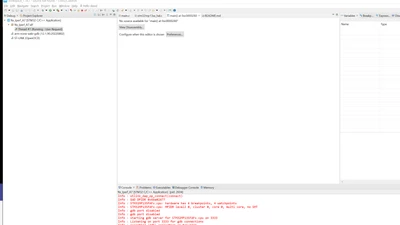
After you load the code in DDR, and resume it, the cubeIDE won't be able to show the sources:

DBELL1_0-1707732081520.png

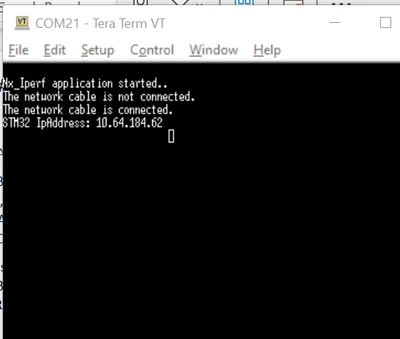
in a terminal windows, you should see this:

DBELL1_1-1707732182147.png

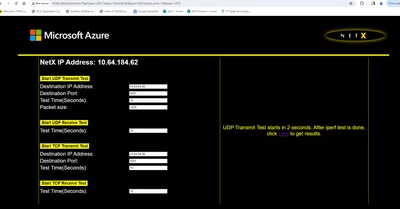
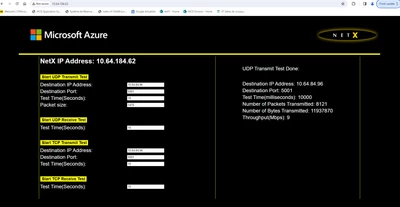
and then you can try with your favorite browser (http://IP@) thesame ip you saw in the terminal:(

DBELL1_2-1707732234065.png

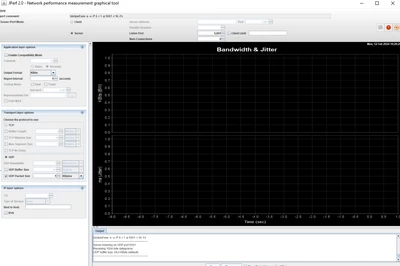
then start the Jperf tool and run it

DBELL1_3-1707732333696.png


press start UDP transmit in the web page
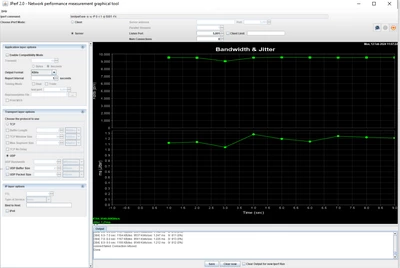
and check the jperf tool:

DBELL1_4-1707732477695.png

and finally you can check everything is OK in the browser by clicking "here" in the right pan:

DBELL1_5-1707732575259.png

I hope it will help you
For the TCP transmit, you can do it with TCP selected instead of UDP in the Jperf tool.

regards
David

4 replies

DBELL.1
DBELL.1Best answer
ST Employee
February 12, 2024

Hello @ravo,

First the ethernet cable must be connected and a terminal launched.

After you load the code in DDR, and resume it, the cubeIDE won't be able to show the sources:

DBELL1_0-1707732081520.png

in a terminal windows, you should see this:

DBELL1_1-1707732182147.png

and then you can try with your favorite browser (http://IP@) thesame ip you saw in the terminal:(

DBELL1_2-1707732234065.png

then start the Jperf tool and run it

DBELL1_3-1707732333696.png


press start UDP transmit in the web page
and check the jperf tool:

DBELL1_4-1707732477695.png

and finally you can check everything is OK in the browser by clicking "here" in the right pan:

DBELL1_5-1707732575259.png

I hope it will help you
For the TCP transmit, you can do it with TCP selected instead of UDP in the Jperf tool.

regards
David

ravoAuthor
Associate III
February 12, 2024

Dear @DBELL.1 ,

I am doing it in same way as you wrote. But I got only response in terminal "Nx Iperf application started.." no another info...

Rj45 cable is connected to ETH1.

Regards

Radim

DBELL.1
ST Employee
February 12, 2024

Hello @ravo ,


Do you connect the ethernet cable to a DHCP server?
And I plug it before powering the board.
When I don't plug the cable, I have no info at all in the terminal.

regards

David

ravoAuthor
Associate III
February 12, 2024

Dear @DBELL.1 ,

I have connected rj45 Prior to start debug.

I use DHCP server as service app in windows 10 using usb to ethernet adapter. Main PC on this adaoter has address 192.168.0.1. In his monitor tool I see that the board is connected and got assigned address 192.168.0.2.

I also tried to disable DHCP client and set static address in netxduo initialization. Then I am able to ping stm32 board and get response for ping. But in terminal window no more information.

Regards

Radim


DBELL.1
ST Employee
February 12, 2024

Hello @ravo ,

and then could you try to reach the application with your web browser and with http://@IP?

regards,
David

ravoAuthor
Associate III
February 12, 2024

Dear @DBELL.1 

Maybe there was problem with DHCP server application. I setup router with DHCP and the board get 192.168.1.179 address and web server is now running:

ravo_0-1707741788697.png

And now all tests are working...

Thanks... so the problem was on my side.

Radim