

Solved
Cookbook: enabling arm_math.h on STM32H7 (dual core M7/M4)
I spent the time to learn how to get it up and running so that you don't have to. What I am explaining here was done on Win 10. My CubeIDE version was 1.6.1.
- Downloading and copying the files:
- At the time I installed it, STM32Cube_FW_H7_V1.9.0 was current. I downloaded it from here.
- After extracting the zip file, open a File Explorer window and go to the directory "<extractedFiles>\en.stm32cubeh7_v1-9-0_v1.9.0\STM32Cube_FW_H7_V1.9.0\Drivers\CMSIS\DSP"
- In the above directory, you will notice two folders: "Include" and "Lib". These two folders will have to be copied in your already existing project as explained next.
- Open another File Explorer window and go to the root directory of your project "<user>\STM32CubeIDE\<workspace>\<projectName>\Drivers\CMSIS". Here you need to create a new folder called "DSP". Once created, copy the to folders "Include" and "Lib" under folder "DSP".
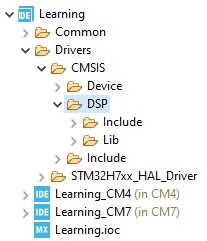
- Unless your CubeIDE is already open, start it up. Unless the DSP folder isn't already visible, hit F5. Now it should look like this in the Project Explorer of CubeIDE ("Learning" is what I called my project here):
- Next we need to establishing the appropriate links in a number of places in CubeIDE.
- Note that you will have to do this job both in the CM4 as well as the CM7 project. In the Project Explorer of CubeIDE, right-click on one of the projects, like "Learning_CM4" or "Learning_CM7" as shown in my example above and click on "Properties (Alt+Enter)". Add the path highlighted in blue as shown below by clicking on the button encircled in red:
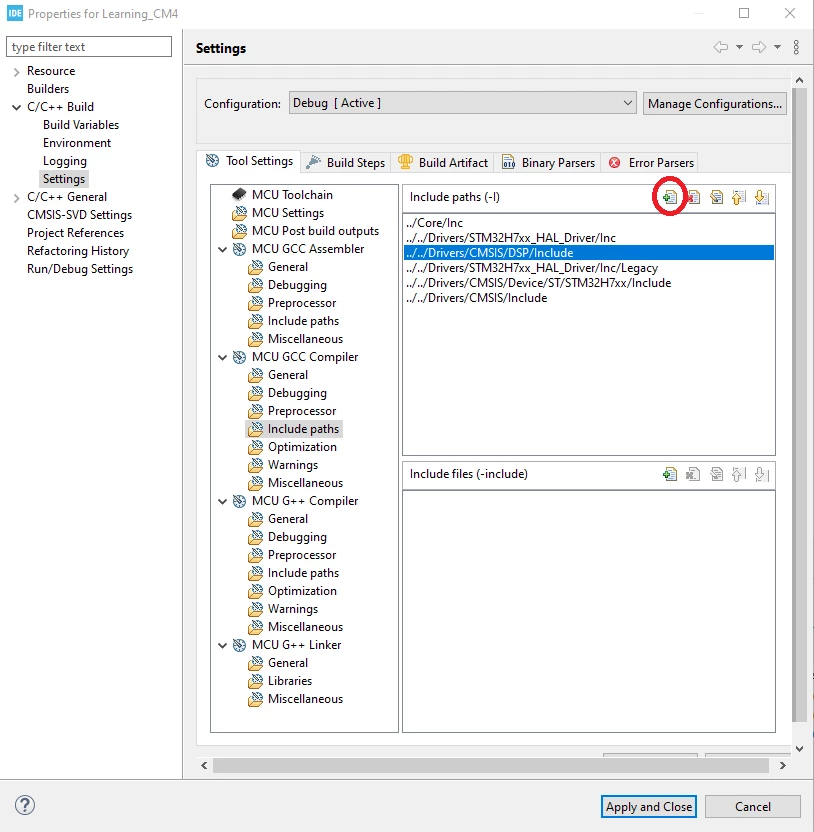
- Notice the selection at the top "Configuration: Debug [Active]". After hitting "Apply", make sure you repeat this for all your other configurations. The same goes for all the following steps, so don't forget to do it (it's a bit cumbersome).
- Next add the following symbol as shown below. If you have selected your project for CM4, enter "ARM_MATH_CM4". If you have selected your project for CM7, enter "ARM_MATH_CM7".
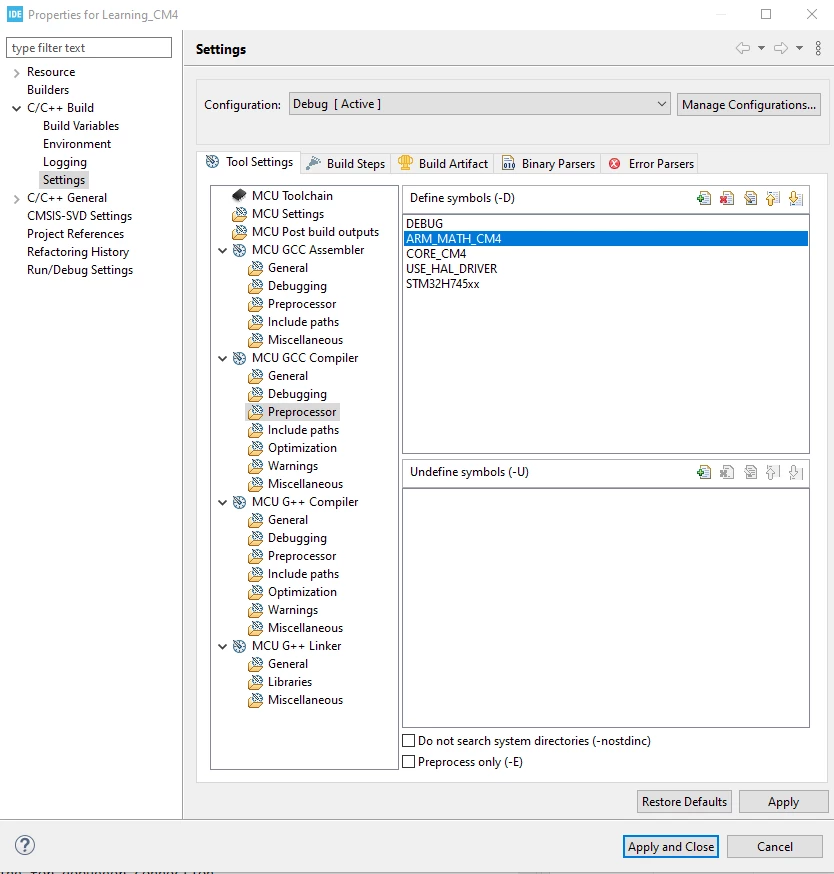
- Notice that you did the above for "MCU GCC Compiler -- Preprocessor". I repeated the same for "MCU G++ Compiler -- Preprocessor". You may want to do the same.
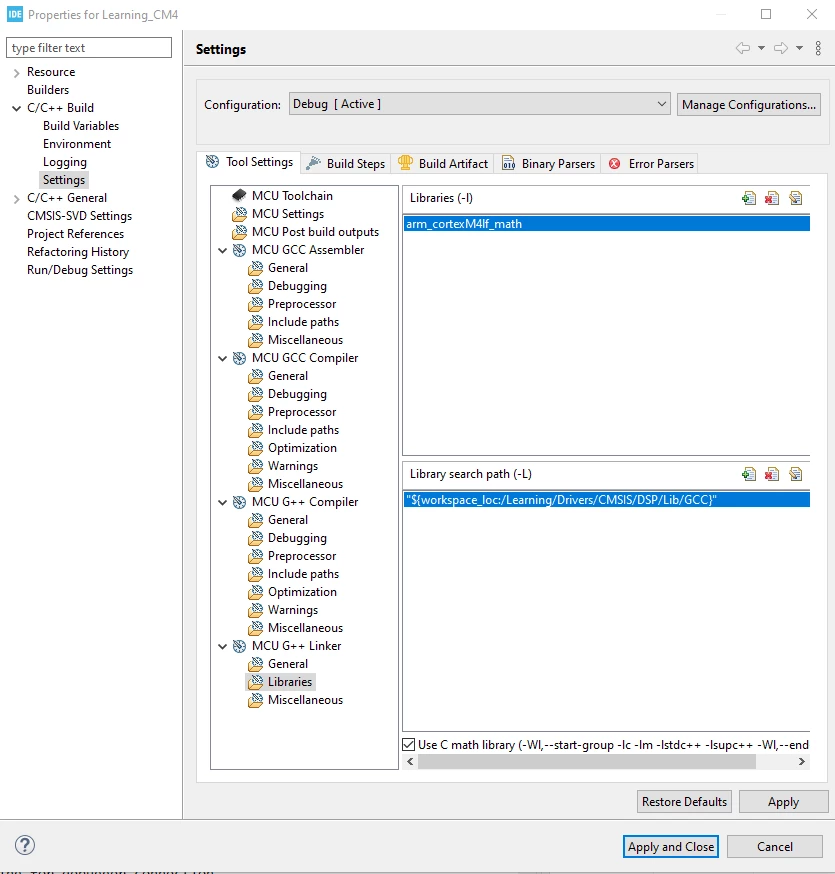
- Now comes the part that took me the longest to figure out. For CM4, add library "arm_cortexM4lf_math" if you are in the settings for your CM4 project; use "arm_cortexM7lfdp_math" for your CM7 project. In both cases, you will have to add the proper library search path as shown below. It should be written like follows: "${workspace_loc:/<projectName>/Drivers/CMSIS/DSP/Lib/GCC}". Unfortunately you cannot use "${workspace_loc:/${ProjName}..." as is possible in other places. I think this is a bug.
- Note that you will have to do this job both in the CM4 as well as the CM7 project. In the Project Explorer of CubeIDE, right-click on one of the projects, like "Learning_CM4" or "Learning_CM7" as shown in my example above and click on "Properties (Alt+Enter)". Add the path highlighted in blue as shown below by clicking on the button encircled in red:
- Now add "#include arm_math.h" wherever you need it in your corresponding C files: in the CM4 project and/or in the CM7 project. Compile and link your project. If you encounter errors, check if you've forgotten a setting for the configuration you are using for compiling/linking.
I hope this helped you. If it did, consider giving my post a "Like". Thanks.