Nitin
Associate III
June 24, 2025
Question

STM32F767ZI - "Permission Denied" Compilation Error After Enabling Ethernet (LwIP)

  • June 24, 2025
  • 1 reply
  • 464 views


Hello,

I’m working with the STM32F767ZI board and have configured Ethernet (ETH) peripheral with LwIP middleware using STM32CubeIDE. After generating the code and trying to compile the project, I encounter the following error:


arduino
CopyEdit
ld.exe: cannot find .: Permission denied

This issue started occurring only after enabling the Ethernet peripheral and LwIP middleware. Prior to this configuration, the project was compiling successfully.

Steps Taken:

  • Enabled ETH in RMII mode

  • Enabled LwIP with default settings (static IP)

  • Generated code using STM32CubeMX

  • Tried cleaning and rebuilding the project

Additional Info:

  • STM32CubeIDE version: [your version, e.g. 1.13.0]

  • Toolchain: ARM-GCC (default from CubeIDE)


Request:
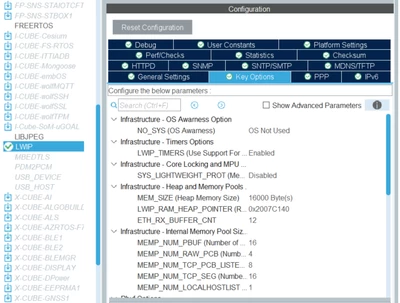
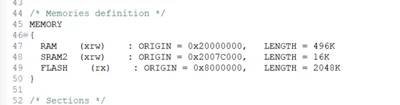
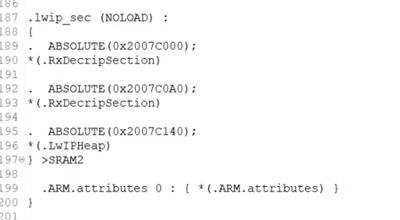
Could someone please help me identify why this "Permission denied" error is happening and how to resolve it? Also if the configuration has some other possible issue for ethernet not to work. I am attaching some conf images from cubeMX below
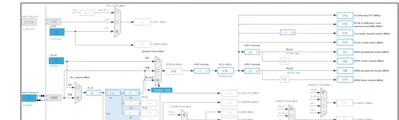
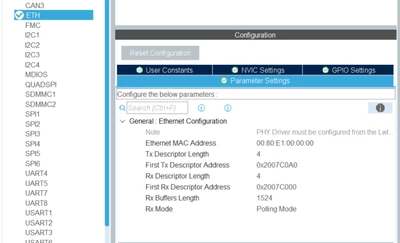
Nitin_0-1750759190986.png


Nitin_2-1750759234286.png


Nitin_3-1750759278553.png


Nitin_5-1750759314655.png


Nitin_8-1750759340504.png


Thanks in advance!

1 reply

Technical Moderator
June 25, 2025

Hello @Nitin,


ld.exe: cannot find .: Permission denied

This error can be caused by file access permissions, which occur when STM32CubeMX generates a project in a folder without sufficient permissions. Make sure the project folder has proper read and write permissions. The error could also result from an incorrect linker script definition, such as a syntax error or incorrect memory region definitions.

Regarding your request, I suggest you take a look at this repository, where you will find the necessary steps to implement an LwIP application on the STM32F767ZI.

Best regards,

To improve visibility of answered topics, please click 'Accept as Solution' on the reply that resolved your issue or answered your question.