
Franco Spediacci
Associate
June 18, 2020
Solved

How can I to store variables into a csv log file?

  • June 18, 2020
  • 7 replies
  • 4597 views

I see file storage saves a json. I tried to put a csv conversion node in the middle but nothing is saved.

Thanks

This topic has been closed for replies.
Best answer by stephane.legargeant

Hello

The .stcm may not be processed properly by the node-red-contrib-json2csv because it is a list of json blocks. So each block should be parsed separately.

Here is a proposal to convert the stcm files in csv. It will output on each line of the csv file the variable name, x and y.
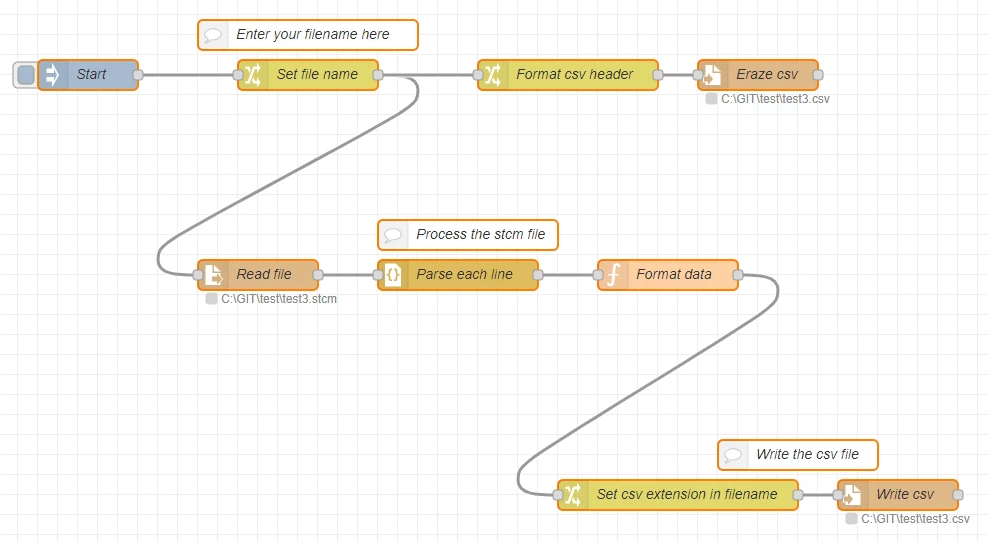
0693W000003PAbFQAW.png

Here is the flow to import :

[{"id":"cc0c8ae8.c69f98","type":"tab","label":"Convert stcm","disabled":false,"info":"This flow is used to convert stcm file in csv file\n\nThe file name must be entered in the \"set file name\" node\n\nThe csv output format is variable Name, x, y\nNote : the data may be processed by group, so the x value may not be in time order. The csv file may be sorted on the x value to ensure order coherency. "},{"id":"a9caceb2.eb94d","type":"file in","z":"cc0c8ae8.c69f98","name":"Read file","filename":"","format":"lines","chunk":false,"sendError":false,"encoding":"none","x":280,"y":360,"wires":[["99d027a1.b92d98"]]},{"id":"9350e2b8.9aa3e","type":"inject","z":"cc0c8ae8.c69f98","name":"Start","topic":"","payload":"","payloadType":"date","repeat":"","crontab":"","once":false,"onceDelay":0.1,"x":110,"y":160,"wires":[["3371f5e6.b3b50a"]]},{"id":"99d027a1.b92d98","type":"json","z":"cc0c8ae8.c69f98","name":"Parse each line","property":"payload","action":"","pretty":false,"x":480,"y":360,"wires":[["badf8efa.bacee"]]},{"id":"badf8efa.bacee","type":"function","z":"cc0c8ae8.c69f98","name":"Format data","func":"let output=\"\";\nmsg.payload.variabledata.forEach (data=>output=output+ msg.payload.variablename+ \",\"+ data.x + \",\"+ data.y+\"\\n\");\nmsg.payload= output;\nreturn msg;","outputs":1,"noerr":0,"x":690,"y":360,"wires":[["38fb106e.c00f"]]},{"id":"d2859af6.e93368","type":"file","z":"cc0c8ae8.c69f98","name":"Write csv","filename":"","appendNewline":false,"createDir":false,"overwriteFile":"false","encoding":"none","x":920,"y":580,"wires":[[]]},{"id":"3371f5e6.b3b50a","type":"change","z":"cc0c8ae8.c69f98","name":"Set file name","rules":[{"t":"set","p":"filename","pt":"msg","to":"C:\\GIT\\test\\test3.stcm","tot":"str"}],"action":"","property":"","from":"","to":"","reg":false,"x":330,"y":160,"wires":[["a9caceb2.eb94d","593d0b11.8d3654"]]},{"id":"f3d3a57a.c56e48","type":"comment","z":"cc0c8ae8.c69f98","name":"Enter your filename here","info":"","x":330,"y":120,"wires":[]},{"id":"38fb106e.c00f","type":"change","z":"cc0c8ae8.c69f98","name":"Set csv extension in filename","rules":[{"t":"change","p":"filename","pt":"msg","from":"stcm","fromt":"str","to":"csv","tot":"str"}],"action":"","property":"","from":"","to":"","reg":false,"x":700,"y":580,"wires":[["d2859af6.e93368"]]},{"id":"b1ba9fe.177b06","type":"file","z":"cc0c8ae8.c69f98","name":"Eraze csv","filename":"","appendNewline":true,"createDir":false,"overwriteFile":"true","encoding":"none","x":780,"y":160,"wires":[[]]},{"id":"593d0b11.8d3654","type":"change","z":"cc0c8ae8.c69f98","name":"Format csv header ","rules":[{"t":"change","p":"filename","pt":"msg","from":"stcm","fromt":"str","to":"csv","tot":"str"},{"t":"set","p":"payload","pt":"msg","to":"Variable, x, y","tot":"str"}],"action":"","property":"","from":"","to":"","reg":false,"x":590,"y":160,"wires":[["b1ba9fe.177b06"]]},{"id":"796c6b18.2aab34","type":"comment","z":"cc0c8ae8.c69f98","name":"Process the stcm file","info":"","x":490,"y":320,"wires":[]},{"id":"c2ec88a.7368678","type":"comment","z":"cc0c8ae8.c69f98","name":"Write the csv file","info":"","x":820,"y":540,"wires":[]}]

To use it, go to menu import , copy paste the text, and select "new flow".

Then for each conversion :

1) in the box "Set file name", enter the name of file to convert (absolute path + extension : "C:\log\test1.stcm")

2) press start. The file will be processed and stored with the csv extension.

I hope it will answer your need.

Stephane

7 replies

Landry
Visitor II
June 22, 2020

Dear @Franco Spediacci​ ,

Can you share your flow to try to understand your issue ?

Landry

Franco Spediacci
Associate
June 23, 2020

Hi Landry,

thanks for reply.

You can find two flows attached and related logs.

In one I do not use conversion. In the log I see json.

In the other I use CSV conversion. In the log I see only the variables names.

Franco

david.rojas
Associate
August 5, 2020

I have the exact same issue, I can only see the variable names.

Richard.Chvr
Technical Moderator
August 6, 2020

Hello @Franco Spediacci​  and @david.rojas​ 

You can try json-2-csv node to convert json to csv

https://flows.nodered.org/node/node-red-contrib-json2csv

Hope it helps

Richard.

To give better visibility on the answered topics, please click on Accept as Solution on the reply which solved your issue or answered your question.
FDi L.228
Associate II
August 10, 2020

Same issue here, did anyone find a way to export data to csv?

stephane.legargeant
ST Employee
August 12, 2020

Hello

The .stcm may not be processed properly by the node-red-contrib-json2csv because it is a list of json blocks. So each block should be parsed separately.

Here is a proposal to convert the stcm files in csv. It will output on each line of the csv file the variable name, x and y.

0693W000003PAbFQAW.png

Here is the flow to import :

[{"id":"cc0c8ae8.c69f98","type":"tab","label":"Convert stcm","disabled":false,"info":"This flow is used to convert stcm file in csv file\n\nThe file name must be entered in the \"set file name\" node\n\nThe csv output format is variable Name, x, y\nNote : the data may be processed by group, so the x value may not be in time order. The csv file may be sorted on the x value to ensure order coherency. "},{"id":"a9caceb2.eb94d","type":"file in","z":"cc0c8ae8.c69f98","name":"Read file","filename":"","format":"lines","chunk":false,"sendError":false,"encoding":"none","x":280,"y":360,"wires":[["99d027a1.b92d98"]]},{"id":"9350e2b8.9aa3e","type":"inject","z":"cc0c8ae8.c69f98","name":"Start","topic":"","payload":"","payloadType":"date","repeat":"","crontab":"","once":false,"onceDelay":0.1,"x":110,"y":160,"wires":[["3371f5e6.b3b50a"]]},{"id":"99d027a1.b92d98","type":"json","z":"cc0c8ae8.c69f98","name":"Parse each line","property":"payload","action":"","pretty":false,"x":480,"y":360,"wires":[["badf8efa.bacee"]]},{"id":"badf8efa.bacee","type":"function","z":"cc0c8ae8.c69f98","name":"Format data","func":"let output=\"\";\nmsg.payload.variabledata.forEach (data=>output=output+ msg.payload.variablename+ \",\"+ data.x + \",\"+ data.y+\"\\n\");\nmsg.payload= output;\nreturn msg;","outputs":1,"noerr":0,"x":690,"y":360,"wires":[["38fb106e.c00f"]]},{"id":"d2859af6.e93368","type":"file","z":"cc0c8ae8.c69f98","name":"Write csv","filename":"","appendNewline":false,"createDir":false,"overwriteFile":"false","encoding":"none","x":920,"y":580,"wires":[[]]},{"id":"3371f5e6.b3b50a","type":"change","z":"cc0c8ae8.c69f98","name":"Set file name","rules":[{"t":"set","p":"filename","pt":"msg","to":"C:\\GIT\\test\\test3.stcm","tot":"str"}],"action":"","property":"","from":"","to":"","reg":false,"x":330,"y":160,"wires":[["a9caceb2.eb94d","593d0b11.8d3654"]]},{"id":"f3d3a57a.c56e48","type":"comment","z":"cc0c8ae8.c69f98","name":"Enter your filename here","info":"","x":330,"y":120,"wires":[]},{"id":"38fb106e.c00f","type":"change","z":"cc0c8ae8.c69f98","name":"Set csv extension in filename","rules":[{"t":"change","p":"filename","pt":"msg","from":"stcm","fromt":"str","to":"csv","tot":"str"}],"action":"","property":"","from":"","to":"","reg":false,"x":700,"y":580,"wires":[["d2859af6.e93368"]]},{"id":"b1ba9fe.177b06","type":"file","z":"cc0c8ae8.c69f98","name":"Eraze csv","filename":"","appendNewline":true,"createDir":false,"overwriteFile":"true","encoding":"none","x":780,"y":160,"wires":[[]]},{"id":"593d0b11.8d3654","type":"change","z":"cc0c8ae8.c69f98","name":"Format csv header ","rules":[{"t":"change","p":"filename","pt":"msg","from":"stcm","fromt":"str","to":"csv","tot":"str"},{"t":"set","p":"payload","pt":"msg","to":"Variable, x, y","tot":"str"}],"action":"","property":"","from":"","to":"","reg":false,"x":590,"y":160,"wires":[["b1ba9fe.177b06"]]},{"id":"796c6b18.2aab34","type":"comment","z":"cc0c8ae8.c69f98","name":"Process the stcm file","info":"","x":490,"y":320,"wires":[]},{"id":"c2ec88a.7368678","type":"comment","z":"cc0c8ae8.c69f98","name":"Write the csv file","info":"","x":820,"y":540,"wires":[]}]

To use it, go to menu import , copy paste the text, and select "new flow".

Then for each conversion :

1) in the box "Set file name", enter the name of file to convert (absolute path + extension : "C:\log\test1.stcm")

2) press start. The file will be processed and stored with the csv extension.

I hope it will answer your need.

Stephane

FDi L.228
Associate II
August 12, 2020

It works, thank you!

It still would be nice to have this function directly inside STM32CubeMonitor.

stephane.legargeant
ST Employee
March 25, 2021