Hi Ali,
Let us start with AutoDevKit Studio.
You do not need to install on SPC5Studio as it was before. Just download it and run the .exe to install it:
www.st.com/autodevkitsw
Eventually, you can also deinstall SPC5Studio.
After installation of AutoDevKit Studio 2.2.1, you need to update some components.
Just go in menu Help>Install new software and write the sever address:
autodevkit.spc5studio.com
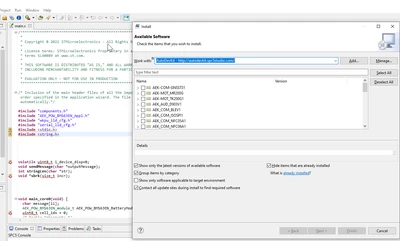
Select all and proceed with the installation. Once completed it will ask you to restart AutoDevKit Studio.
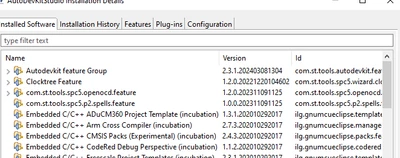
After the installation if you click on the 'already installed' link shown in cyan in the previous image you should see the latest installation AutoDevKit group feature version 2.3.1
Now considering the MCU board you have the key low-level drivers primitives you need are:
/* Turn off the first led of the MCU board .*/
pal_lld_setpad(x,y);
/* Delay execution for given milliseconds*/
osalThreadDelayMilliseconds(number_of_millisenconds);
/* Turn on the first led of the MCU board .*/
pal_lld_clearpad(x,y));
/* Delay execution for given milliseconds*/
osalThreadDelayMilliseconds(number_of_millisenconds);
The pin configuration for a given example is:
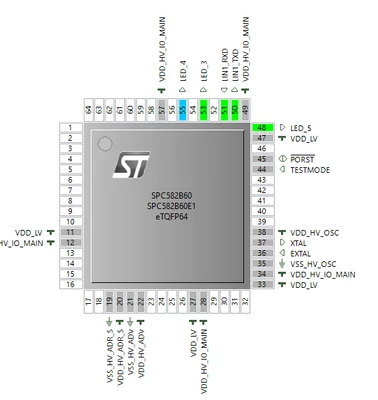
These 4 functions in an infinite loop will toggle the LED of the board continuously.
An alternative example code to toggle three LEDs follows:
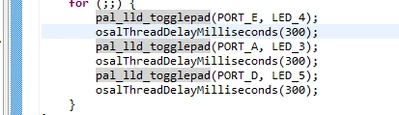
If you want to do it on button press, you should enable the WakeUP unit and set a callback to be invoked every time the button is pressed.
A configuration example below:
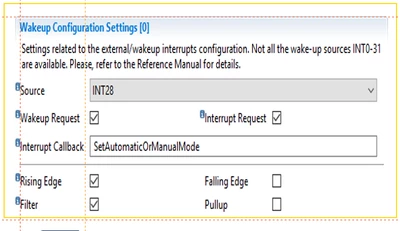
Then in the code you need to define the callback function outside the main function, called SetAutomaticOrManualMode() in the above case, and in the main code you should initialize the wakeup unit with the following command:

The second parameter is the name of the configuration you have chosen.
The Interrupt pin in the example above is configured with:
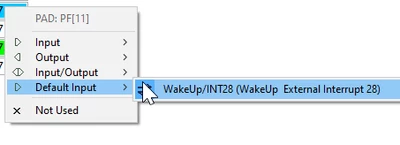
Finally, regarding the LED example in the tutorial video, it involves the AEK-LED-21DISM1 board, a proper LED string driver board.
Best Regards,
AutoDevKit Team
