Associate III
March 7, 2025
Solved

Deploying a deep learning model on NUCLEO-H753ZI

  • March 7, 2025
  • 3 replies
  • 4017 views

Can anyone please help with the step by step process for deploying a deep learning model on NUCLEO-H753ZI board using STM32CubeIDE and XCubeAI package...
I am not able to do it even after trying multiple times...
please help me through this .... using a video or something... as i tried many solutions here...
Or i can provide the remote access of my system to you... if it is possible... 
It is really urgent and needed... 

Best answer by Julian E.

Here is what to do exactly (I have a STM32H743)


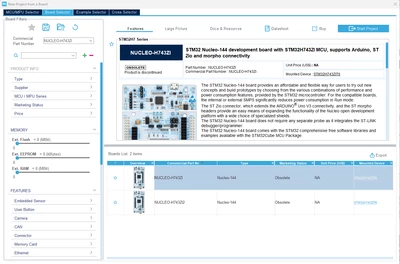
Connect your board using a data cable.

You need to plug it in the ST link port (should be on top for you)

Open cube MX and select your board (I click ok for everything asked)
JulianE_0-1741364746668.png

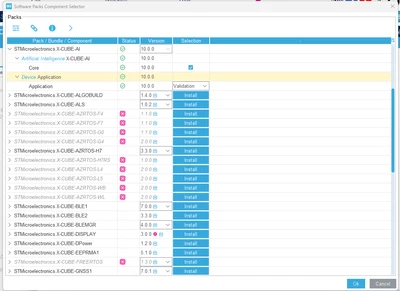
Make sure to have installed H7 software package and X Cube AI software package.


Activate X Cube AI and select Validate template
JulianE_1-1741364786160.png

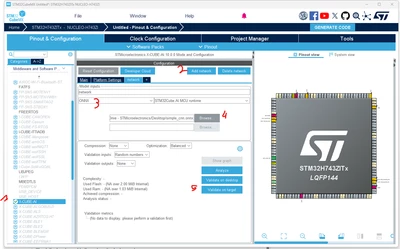
Then select onnx, tf or tflite based on your model

Add network and Click validate on target
JulianE_2-1741364964686.png

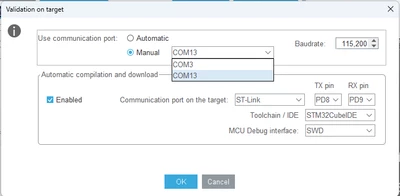
Port COM should be found in Auto but you can check selecting it manually.

(I think that if you only see one COMx port, your cable is not data)

Check the box to enable the automatic deployment

Selec the ST Link and your tool Chain. I use CubeIDE
JulianE_3-1741365001643.png


Click validate.

Here is what I get after doing exacly that:
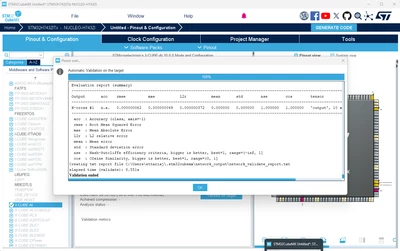
JulianE_5-1741365359143.png


I attached a simple Cnn model .onnx if you want to try it.


If this does not work, there is an issue with your CUBEMX or CUBEIDE. I would suggest uninstalling everything and download everything again. Even better would be to use another PC.

Make sure you have a data cable. It should be quite thick.


Have a good day,

Julian

3 replies

Julian E.
Technical Moderator
March 7, 2025

Hello @Pinagadi_Meghana ,


Can you share your model?

Based on your previous thread, I would say that it is your tools that have an issue. 

Have you tried reinstalling them or using another pc?


Have a good day,

Julian

​In order to give better visibility on the answered topics, please click on 'Accept as Solution' on the reply which solved your issue or answered your question.
Associate III
March 7, 2025

Actually... the same thing tried in another system also giving the same error...
I think it is not about the model, because i used many models and deleted... still facing the same issue with them...
i really want to know the procedure... 
can you please explain taking any example through a video or something 

Julian E.
Julian E.Best answer
Technical Moderator
March 7, 2025

Here is what to do exactly (I have a STM32H743)


Connect your board using a data cable.

You need to plug it in the ST link port (should be on top for you)

Open cube MX and select your board (I click ok for everything asked)

JulianE_0-1741364746668.png

Make sure to have installed H7 software package and X Cube AI software package.


Activate X Cube AI and select Validate template

JulianE_1-1741364786160.png

Then select onnx, tf or tflite based on your model

Add network and Click validate on target

JulianE_2-1741364964686.png

Port COM should be found in Auto but you can check selecting it manually.

(I think that if you only see one COMx port, your cable is not data)

Check the box to enable the automatic deployment

Selec the ST Link and your tool Chain. I use CubeIDE

JulianE_3-1741365001643.png


Click validate.

Here is what I get after doing exacly that:

JulianE_5-1741365359143.png


I attached a simple Cnn model .onnx if you want to try it.


If this does not work, there is an issue with your CUBEMX or CUBEIDE. I would suggest uninstalling everything and download everything again. Even better would be to use another PC.

Make sure you have a data cable. It should be quite thick.


Have a good day,

Julian

​In order to give better visibility on the answered topics, please click on 'Accept as Solution' on the reply which solved your issue or answered your question.
Julian E.
Technical Moderator
March 10, 2025

Hello @Pinagadi_Meghana ,

It blocks at 70%, I wait a little bit after that and close it. I don't know if waiting helps, that just what I did and it worked.

Julian

​In order to give better visibility on the answered topics, please click on 'Accept as Solution' on the reply which solved your issue or answered your question.
Associate III
March 10, 2025

I did that too.... but ended with the same error

Julian E.
Technical Moderator
March 10, 2025

It is very strange...

Can you try to use the dev Cloud instead: Session - ST Edge AI Developer Cloud


  • Load you model to the dev Cloud
  • Select the STM32 MCU as platform
  • Quantize it if not already done and optimize it following the step
  • Click to "Go to benchmark"

First try to benchmark it on the STM32h7 Disco or any other powerful board) and tell me if you get an estimation of the inference time.

JulianE_0-1741616347666.png


Then in the last step,

  • download the .elf of the project
  • Select you board
  • flash it to your board with STM32CubeProgrammer and open a serial terminal with a baudrate of 115200 to see if you get metrics via serial of your model running on the board.

JulianE_1-1741616501443.png


If this works, you can download the MX or IDE project to have the sources instead of the .elf firmarwe.


Julian

​In order to give better visibility on the answered topics, please click on 'Accept as Solution' on the reply which solved your issue or answered your question.
Associate III
March 11, 2025

If u dont mind.... please help me with this doubt...

After downloading .elf file... how to open that in IDE ....

Can u please send screenshots from start to end(like u have done before).... please....

Julian E.
Technical Moderator
March 11, 2025

Hello @Pinagadi_Meghana ,


You need to open it with STM32CubeProgrammer:

  1. Connect the board to the pc and click connect in STM32CubeProgrammer
  2. Go to the left and click the second icon
  3. Browse for your .elf
  4. Click Start programming

JulianE_0-1741681510608.png


Then if you open Tera Term for example, select the right COM Port and set the baudrate to 115200, you should have the results of inference with a random input:

JulianE_1-1741681610301.png


Have a good day,

Julian


​In order to give better visibility on the answered topics, please click on 'Accept as Solution' on the reply which solved your issue or answered your question.