Associate
November 10, 2023
Solved

Change ODR in Sensor Tile Box PRO

  • November 10, 2023
  • 1 reply
  • 1063 views

Hello,

I'm working with MKBOXPRO and I'm using the Entry/Expert Firmware to send to my app via bluetooth accelerations and gyro speeds. I think default ODR is 60 Hz for both datas.

How can I modify ODR and increase it?
In case there isn't a way to do it wiithout coding which files of which fimrware I have to modify?

Thanks, best regards.C

Claudio De Checchi
This topic has been closed for replies.
Best answer by Federica Bossi

Hi @Claud_IAC ,

Please, refer to the user manual for more details.

For your application to have 60Hz both for ODR gyro and XL you can follow these steps:

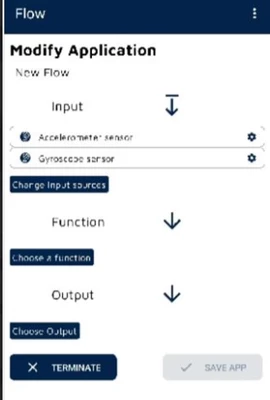
After connecting to the board, click on FLOW -> Expert view -> New app

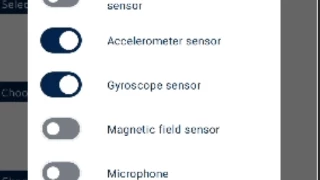
Then click on Select Input and follow these screenshoots:

FedericaBossi_0-1700212822594.pngFedericaBossi_1-1700212851901.png

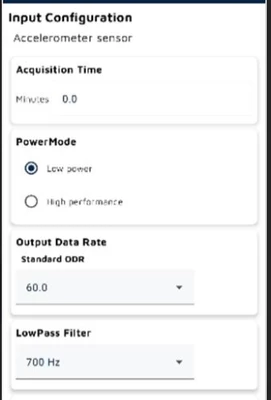
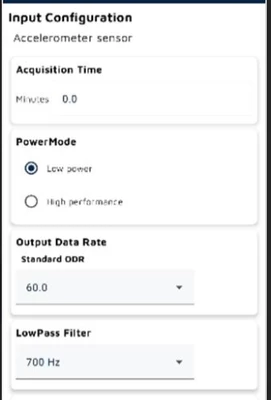
Finally, click on the gear (near the label Accelerometer and Gyroscope) for each sensor to change the ODR:

FedericaBossi_2-1700212945846.png

Select output as STREAM TO BLUETHOOT

At the end save this flow and click the arrow near the flow name to load the flow on the board:

FedericaBossi_3-1700213225388.png


Come back to the first page with all the boards available and reconnect your board to see the outputs on plot data.


1 reply

Federica Bossi
Federica BossiBest answer
Technical Moderator
November 17, 2023

Hi @Claud_IAC ,

Please, refer to the user manual for more details.

For your application to have 60Hz both for ODR gyro and XL you can follow these steps:

After connecting to the board, click on FLOW -> Expert view -> New app

Then click on Select Input and follow these screenshoots:

FedericaBossi_0-1700212822594.pngFedericaBossi_1-1700212851901.png

Finally, click on the gear (near the label Accelerometer and Gyroscope) for each sensor to change the ODR:

FedericaBossi_2-1700212945846.png

Select output as STREAM TO BLUETHOOT

At the end save this flow and click the arrow near the flow name to load the flow on the board:

FedericaBossi_3-1700213225388.png


Come back to the first page with all the boards available and reconnect your board to see the outputs on plot data.


In order to give better visibility on the answered topics, please click on 'Accept as Solution' on the reply which solved your issue or answered your question.