

CWies.1
Associate III
April 25, 2024
Solved

How can I write data to the mailbox via the iOS App?

  • April 25, 2024
  • 1 reply
  • 982 views

After the last update the app is not crashing anymore, But how can I write data to it via the App. IMG_9F780B835FBA-1.jpeg
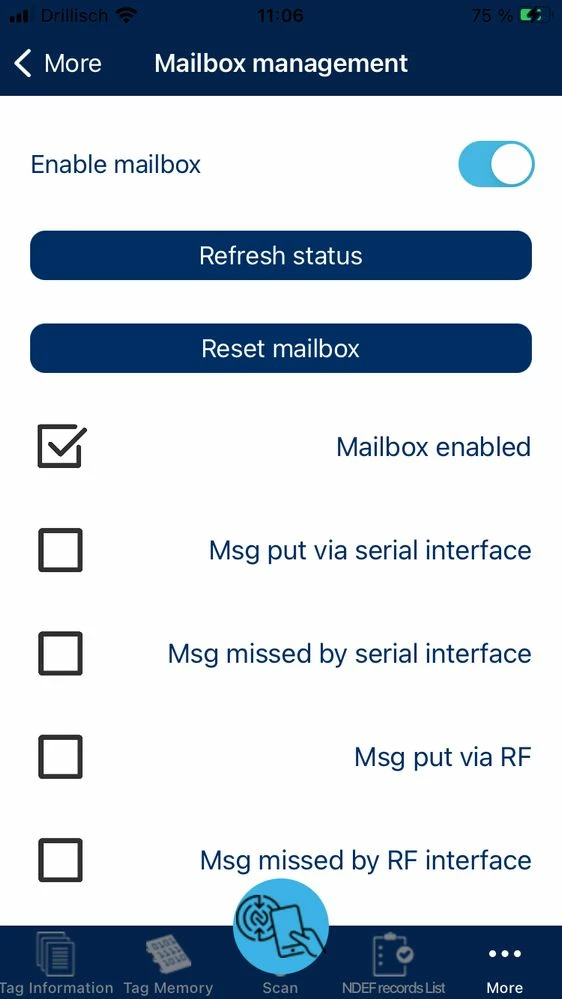
 

All toggles are not clickable. And the code example of the MX_NFC7_Process this function is completely empty.

I realized to read the status by copying the lines:


 NFC07A1_NFCTAG_ReadMBCtrl_Dyn( NFC07A1_NFCTAG_INSTANCE,&mbctrldynstatus );
 printf( "\n\r\n\rCtrl MB status register value:" );
 printf( "\n\rHost(i2c) Missed Message = %d", mbctrldynstatus.HostMissMsg );
 printf( "\n\rRF(reader) Missed Message = %d", mbctrldynstatus.RFMissMsg );
 printf( "\n\rHost(i2c) Put Message = %d", mbctrldynstatus.HostPutMsg );
 printf( "\n\rRF(reader) Put Message = %d", mbctrldynstatus.RfPutMsg );
 printf( "\n\rMailbox Enable = %d", mbctrldynstatus.MbEnable );


And I can modify the MbEnable bool via the app but I would like to write a message via the app. Is there a way to do so. Kind regards,

This topic has been closed for replies.
Best answer by victor laraison

you're right : mail box management display only shows the status of the mail box. You cannot interact with it.

If you are using a ST25DV Discovery board, you can read/write data by using the simple FTM protocol we implemented. 

For writing some datas :

- Select FTM icon on Discovery board

- in iOS NFC Tap : 

  • read tag , then select "FTM demo" => 'FTM-Data Transfer' menus
  • By default, "Write" Mailbox buffer is selected. 
  • Enter Data to write in "write buffer" text field
  • Enter number of byte to write
  • then click start.... => This will write data into Mailbox then at the end , a read from mailbox is performed for checking data wrote. 

For reading some datas :

- Select FTM icon on Discovery board, then clik on 2nd icon on the bottom left (the one with text and pen). Enter a number of KB to transfer. "1" is enough then click return arrow.

- in iOS NFC Tap : 

  • On iOS NFC Tap, then select "FTM demo" => 'FTM-Data Transfer' menus
  • Deselect switch "write / read Mail box buffer" => This will allow read
  • then click start ....=> This will read 1Kb from mailbox then display contents on buffer


Hope it helps

Br


1 reply

victor laraison
victor laraisonBest answer
ST Employee
April 25, 2024

you're right : mail box management display only shows the status of the mail box. You cannot interact with it.

If you are using a ST25DV Discovery board, you can read/write data by using the simple FTM protocol we implemented. 

For writing some datas :

- Select FTM icon on Discovery board

- in iOS NFC Tap : 

  • read tag , then select "FTM demo" => 'FTM-Data Transfer' menus
  • By default, "Write" Mailbox buffer is selected. 
  • Enter Data to write in "write buffer" text field
  • Enter number of byte to write
  • then click start.... => This will write data into Mailbox then at the end , a read from mailbox is performed for checking data wrote. 

For reading some datas :

- Select FTM icon on Discovery board, then clik on 2nd icon on the bottom left (the one with text and pen). Enter a number of KB to transfer. "1" is enough then click return arrow.

- in iOS NFC Tap : 

  • On iOS NFC Tap, then select "FTM demo" => 'FTM-Data Transfer' menus
  • Deselect switch "write / read Mail box buffer" => This will allow read
  • then click start ....=> This will read 1Kb from mailbox then display contents on buffer


Hope it helps

Br