

How to program and debug the STM32 using the Arduino IDE
- November 20, 2023
- 4 replies
- 181123 views
Summary
This article covers how to program and debug your STM32 device with the Arduino IDE.
In this knowledge article, we explore the following main points:
- How to install the STM32 MCUs in the Arduino IDE
- How to program a simple blink LED based on the default example offered
- A brief description on how to start a debug session
1. Introduction
STM32 microcontrollers provide a full set of possibilities. This includes several mechanisms to program the MCU, through different hardware paths (SWD, USART, DFU etc.) and also different IDEs.
This allows the developer to use either our native programming tools, such as STM32CubeIDE or STM32CubeProgrammer. It can also be different IDEs, such as Arduino’s IDE.
Through the Arduino IDE, it is possible to enable the software to recognize our STM32 Nucleo, Discovery and Evaluation boards, including our 3D printer boards and wireless boards!
2. Hardware and software requirements
Hardware:
- NUCLEO-G071RE.
- 1 USB Cable Type micro-B (to NUCLEO-G071RE).
Software:
- Arduino IDE – Software | Arduino
- Optional: STM32CubeProgrammer - STM32CubeProgrammer | STMicroelectronics
3. Development
3.1 Installing the STM32 support
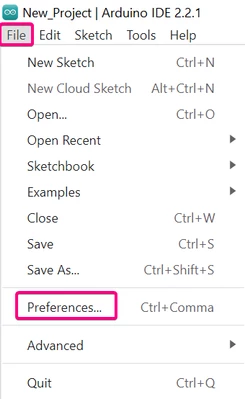
To make your STM32 device compatible with Arduino’s IDE, we need to install the STM32 support. This can be achieved by clicking: Arduino IDE > File > Preferences:
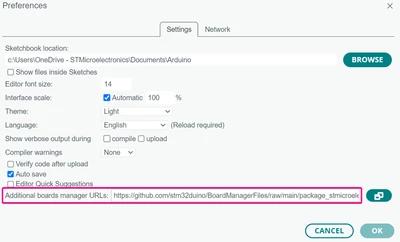
In the Preferences dialog window, add the following URL to the "Additional Boards Managers URLs" field, then click OK:
https://github.com/stm32duino/BoardManagerFiles/raw/main/package_stmicroelectronics_index.json
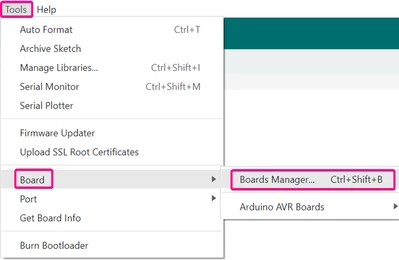
Now, click on Tools > Board > Boards Manager:
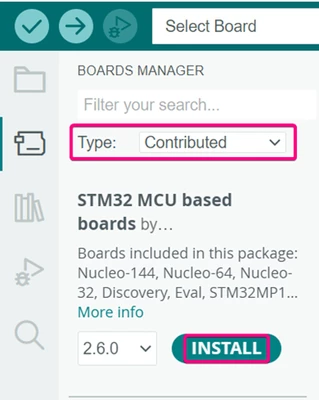
Select “Contributed” type, search for "STM32 MCU based boards" and install:
3.2 Selecting the STM32 microcontroller
After the installation is complete, close the board manager and go to Tools > Board > STM32 MCU based boards.
A list of STM32 MCUs appears, so you can choose between Nucleo, Discovery and Evaluation boards, or generic STM32 MCUs.
By selecting the specific board type, you are able to choose the specific board part number for your board later on.
By choosing the Generic STM32xx Series option, later you are able to select a generic microcontroller for the selected family.
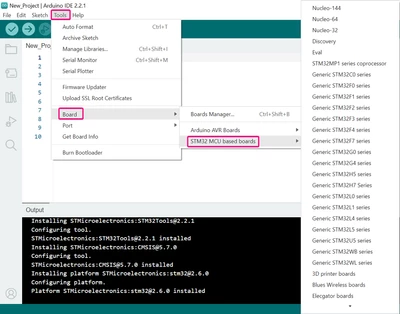
Great! Your board is now correctly selected and recognized by the Arduino IDE!
3.3 Uploading the code
Let us start programming our STM32 device with a simple Blink LED through the Arduino’s IDE.
To perform this task, we have a few options.
These options include programming the STM32 MCU through the Serial Wire Debug, using an STLINK device (external or embedded), and also through bootloader serial port, DFU etc.
Let us see below how to program our STM32 MCU using Arduino’s IDE to get it working properly as expected:
Having the STM32CubeProgrammer installed helps program the STM32 Nucleo, Discovery or Eval board through SWD, Serial or DFU methods with ease. The STM32CubeProgrammer enables drag-and-drop flash programming, so there is no need for a separate debug probe. However, this step is optional and you can program directly via Arduino's IDE as well.
After installing the software and the STM32 cores, go to File > Examples > Basics > Blink:
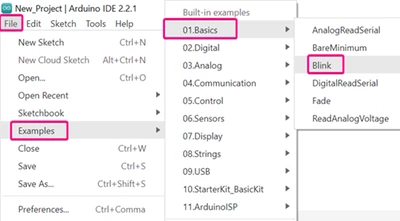
The Blink LED code pops up in a new window and we can now set the appropriate STM32 board.
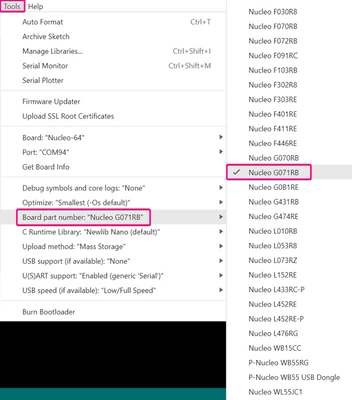
After selecting the board type, as we previously made, click again on Tools > Board Part Number > Select the used STM32 device part number:
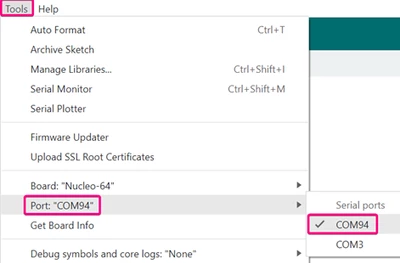
With the microcontroller correctly selected and the board properly connected, let us define the COM Port where the device is connected. Go to Tools > Ports > Select the Port Number:
Click the Upload Button, wait for the code to be compiled and the board to be programmed:
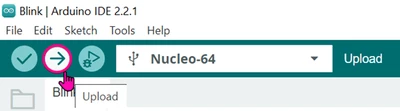
As we can see, the download is successfully finished!

Congratulations! You have now successfully programed your STM32 device through the Arduino's IDE!
4. Debugging the STM32 over Arduino's IDE
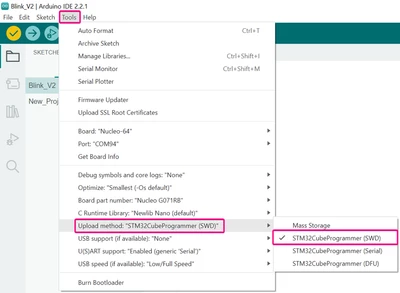
To start a debug session in the Arduino’s IDE, click on Tools > Upload Method > “Serial Wire Debug” option, as follows:
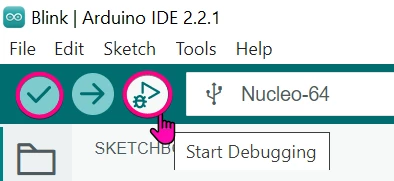
After that, click on the “Verify” symbol to compile the code and then on the “Start Debugging” button.
The perspective changes to the Debug Perspective, as follows:
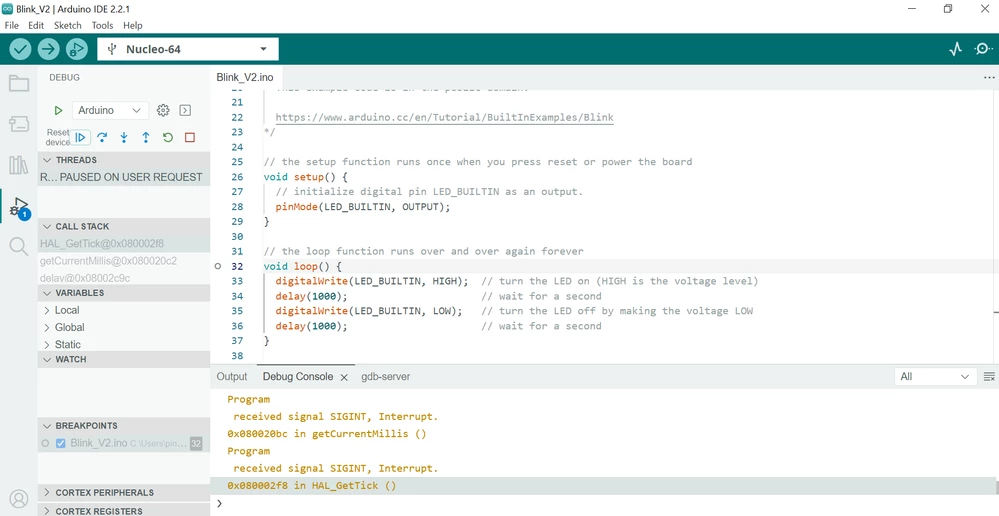
And with all that set, the debug session is up and running!
Note: For more information regarding debug sessions over Arduino’s IDE, you can reach out to Arduino’s documentation over https://www.arduino.cc/.
Hope you enjoyed this tutorial!