APate.18
Associate III
June 6, 2024
Question

TouchGFX

  • June 6, 2024
  • 3 replies
  • 1931 views

Hi Team,

I have a requirement to create an elevator animation based on user input.

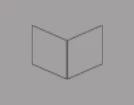
I have a 3D image representing a single floor, and I am using it in a container to create a scroll list for multiple floors. However, because of the 3D image, there is a gap between the floors, which is causing issues.

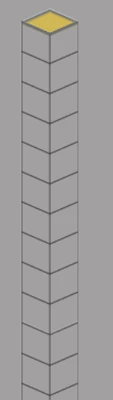
Please find the attached images showing the actual output and the desired output. How can I manage this gap effectively?

Thank you.
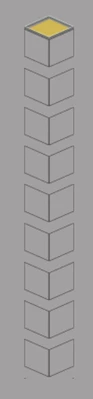
ScrollistBlock_ActualOP.PNG

SingleBlock.PNG

RequiredOP.PNG

3 replies

MM..1
Chief III
June 6, 2024

Transparency ... 

APate.18
APate.18Author
Associate III
June 6, 2024

I am Using Transparent Image for Box 

But it reflected on main page as attached file 

ScrollistBlock_ActualOP.PNG


Lead II
June 6, 2024

It looks like a vector image with a few straight and a few diagonal lines. You can use inkscape to draw the vector image and then export it as svg or as png. So a single image.
Another solution is to use the line object in TouchGFX. The floors are 3 vertical lines in total and 2 diagonal lines per floor (+ 4 extra for top floor).

unsigned_char_array_0-1717661371308.png


"Kudo posts if you have the same problem and kudo replies if the solution works.Click ""Accept as Solution"" if a reply solved your problem. If no solution was posted please answer with your own."
APate.18
APate.18Author
Associate III
June 6, 2024

Is it possible using custom container.? 

MM..1
Chief III
June 6, 2024

My tip start with tiled image + Special image on top + cabin image ...

read Tiled Image | TouchGFX Documentation 

elevtiled.png

ST Employee
June 6, 2024

Hello @APate.18,
You cant put negative margin in Designer, a simple solution is to directly edit the project file (myproject.touchgfx).

The steps:

1) Put margin to a value above 0 (Or add manually in the project file "itemMargin" in component->scrolllist)

2) Generate the project

3) Edit  "ItemMargin" in the project file

4) Go back to designer, accept to reload.

tweak the margin value with steps 3-4 until you find the one you need.

I hope it helps,

Regards,