
Visitor II
July 7, 2025
Solved

failing to connect to the WB55 Nucleo using the STM32CubeMonitor-RF

  • July 7, 2025
  • 2 replies
  • 280 views

Hi, 

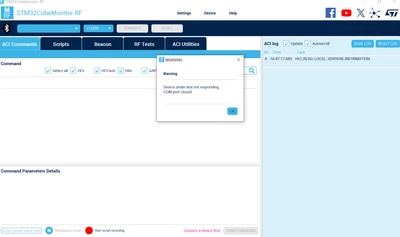
I flashed the nucleo-stm32wb55RG with the binary BLE_TransparentMode_reference.hex (location: C:\ST\STM32CubeWB_package\STM32CubeWB\Projects\P-NUCLEO-WB55.Nucleo\Applications\BLE\BLE_TransparentMode\Binary) using the STM32CubreProgrammer (version 2.20.0). I followed the instructions of UM2288 Rev 19, section 2 (connection to target). But in STM32cubemonitor-rf, when I click 'connect' button, I get a pop-up message: 'Device under test not responding COM port closed'.

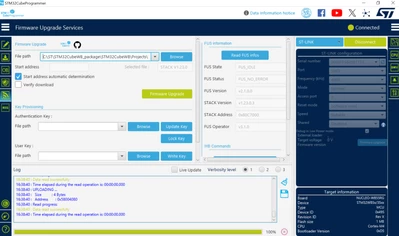
Before flashing BLE_TransparentMode_reference.hex, I installed stm32wb5x_FUS_fw.bin and stm32wb5x_BLE_Stack_full_extended_fw.bin using the STM32CubreProgrammer. Here is the screenshot showing the FUS and stack versions:
fmunoz_0-1751920825596.png

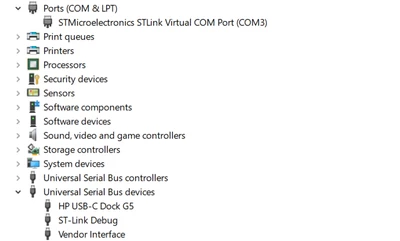
The device manager shows COM3 for the nucleo-wb55:
fmunoz_1-1751920934033.png

However, I am not able to connect to the nucleo using the cube monitor-rf tool as shown below:
 

fmunoz_2-1751921338539.png


 Can you please provide further guidance to fix this issue? 

Thank you 

Best answer by STTwo-32

Hello @fmunoz 

Could you please try to:

  • Connect the board to the STM32Cube programmer V2.20.0.
  • Click on the button ‘Read FUS infos’.
  • Click on the button ‘Start Wireless Stack’.
  • Open the BLE_Transparent mode example From the STM32CubeWB V1.23.0 using the STM32CubeIDE V1.19.0.
  • Compile and upload the code to your Board.
  • Open the STM32CubeMONITOR-RF V2.18.0. 
  • Set the correct COM port and set 115200 as baudrate.
  • Click on Connect button.

That should work.
Best Regards.

STTwo-32

2 replies

STTwo-32
STTwo-32Best answer
Technical Moderator
July 8, 2025

Hello @fmunoz 

Could you please try to:

  • Connect the board to the STM32Cube programmer V2.20.0.
  • Click on the button ‘Read FUS infos’.
  • Click on the button ‘Start Wireless Stack’.
  • Open the BLE_Transparent mode example From the STM32CubeWB V1.23.0 using the STM32CubeIDE V1.19.0.
  • Compile and upload the code to your Board.
  • Open the STM32CubeMONITOR-RF V2.18.0. 
  • Set the correct COM port and set 115200 as baudrate.
  • Click on Connect button.

That should work.
Best Regards.

STTwo-32

Billy OWEN
ST Employee
July 10, 2025

Hi @fmunoz 


This post has been escalated to the ST Online Support Team for additional assistance.  We'll contact you directly.


Regards,

Billy