
STM32Cube further facilitates code development with Clang/LLVM support
Clang/LLVM toolchain project overview
For over a decade ST has offered GNU tools for STM32 as the free, reference toolchain when developing STM32 applications. It is well supported across the complete STM32Cube ecosystem and will continue to be maintained by ST.
The Clang/LLVM toolchain will over time offer STM32 developers better code density and execution speed. This release is a first step on the journey towards better toolchain performance and increased STM32Cube ecosystem integration. The toolchain will be supported within STM32CubeMX and with STM32Cube for Visual Studio Code.
This release provides a first version of the ST Arm Clang toolchain built on the Arm LLVM source tree. It allows early adopters to try a toolchain with a similar performance compared to today’s GCC. It offers more sanity checkers, more optimized C libraries, while compiler benchmark figures will come later.
Further to this initial release, developers can expect two additional steps:
- Feedback collection
Early adopters will be provided the opportunity to share feedback, allowing ST to finetune the toolchain and ensure its level of integration across the STM32Cube ecosystem meets expectations.
- Toolchain optimization
ST will adjust the toolchain with the aim to improve code density and execution speed.
Embracing a step-by-step approach ensures that we set priorities in the development phase, in accordance with developer feedback. The ST Arm Clang flavor will soon provide example projects, and STM32CubeMX and STM32Cube for Visual Studio Code will help STM32 developers get started in the meantime.
What the ST Arm Clang toolchain offers
ST Arm Clang is a new C/C++ toolchain for STM32 development, which is built on the modern LLVM compiler infrastructure and the Arm Toolchain for Embedded.
This new LLVM-based toolchain provides developers with a more efficient, flexible, and future-proof development environment while maintaining compatibility with existing projects.
ST Arm Clang is designed as a drop-in replacement for the GNU tools for STM32, minimizing disruption for developers transitioning to it. However, several minor incompatibilities or divergent features may exist due to the differences in the underlying infrastructure. To ease this transition, we provide two versions of the toolchain:
- Hybrid toolchain: only the C/C++ LLVM Clang compiler and the integrated assembler are used to compile the code into object files (local applications, HAL, etc.). The final binary is built using the tools and libraries from the existing GNU tools for STM32 (GNU Binutils linker, C/C++ libraries, and runtime). This hybrid version is ideal for developers looking to test or leverage Clang's compilation while retaining the familiar GNU linking and runtime environment. Both toolchains (Clang and GCC) should be installed on your system, and link-time optimization (LTO) is not available in this mode.
- Full LLVM toolchain: this version offers the complete long-term LLVM-based solution (Clang compiler, LLVM linker and runtime) with updated libraries, such as Picolibc or LLVM libc++. It benefits from the combined effort from the LLVM community, as well as Arm and ST research and development teams to reach optimal support, performance, and code-size on STM32 devices. The toolchain offers two distinct C library implementations, allowing developers to choose based on their project priorities or device resources: Newlib for performance and Picolibc for code size.
STM32CubeMX support
The STM32CubeMX version 6.15 introduces support for ST Arm Clang. More specifically, STM32CubeMX generates projects for the hybrid flavor of the ST Arm Clang toolchain. This will allow STM32 developers to quickly try their existing GCC projects with ST Arm Clang toolchain without having to write a new linker script or consider incompatibilities between Newlib and Picolibc.
Selecting the combination of CMake and ST Arm Clang will create a project targeting the hybrid toolchain: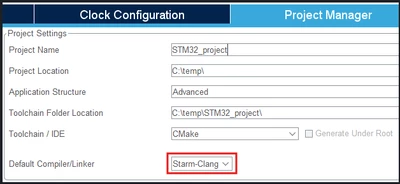
If users wish to switch from the hybrid to the full LLVM flavor, they can do so inside STM32Cube for Visual Studio Code , following the explanations below.
STM32Cube for Visual Studio Code
Developers can choose between two options to start a project within the STM32Cube ecosystem.
- Use STM32CubeMX to generate a configurable project
- Use STM32Cube for Visual Studio Code to generate an empty project
This tutorial is based on the assumption that a project was created with STM32CubeMX as shown in the previous chapter.
How to import an STM32CubeMX project and initiate the Visual Studio Code environment
Inside STM32Cube for Visual Studio Code, open the folder containing the project generated with STM32CubeMX.
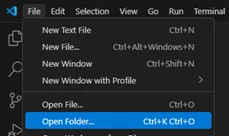
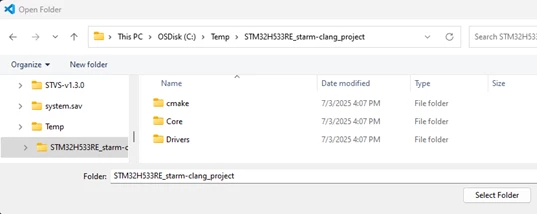
Select the folder where STM32CubeMX generated the project.
Allow STM32Cube for Visual Studio Code to load the STM32 extension. You will be asked to configure the project and an STM32Cube project, and select Yes.
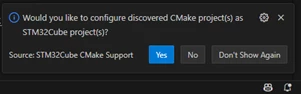
Visual Studio Code will read the project metadata and detect whether the ST Arm Clang toolchain is installed or not.
If this is the first time that a project is created targeting this new toolchain, the environment will automatically download, install, and activate this toolchain for this project. The download size is ~700 Mbytes and the installation footprint is 2.5 Gbytes.
The Visual Studio Code environment is not reconfigured to use ST Arm Clang globally. The toolchain selection and management of environmental paths are managed locally inside Visual Studio Code and can be unique to each project.
Building the project and analyzing the results
When the installation of ST Arm Clang is complete, CMake is invoked to run the configure step on the project.

The new ST Arm Clang toolchain as can be seen in the CMake/Build output channel.
Click the build button to build your project.
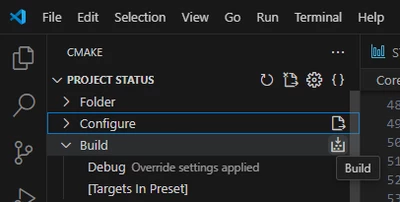

The result is shown in the output console. A build analyzer is available to give further insights into the build result. Right-click on any map-file and select Open memories analysis.
Understanding the CMake file structure and how to select the toolchain
The CMakePresets.json is using the file starm-clang.cmake as the CMake toolchain file.
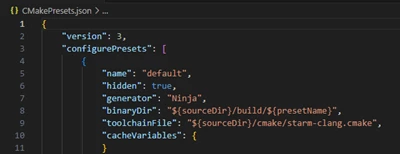
This line would point to gcc-arm-none-eabi.cmake if STM32CubeMX was generating this file targeting GCC. STM32CubeMX 6.15 and later versions will generate both gcc-arm-none-eabi.cmake and starm-clang.cmake in parallel to allow developers to switch toolchains from inside the IDE. STM32CubeMX will generate these two files only once and never modify them again.
The accompanying starm-clang.cmake will allow developers to select which C library combination to choose.
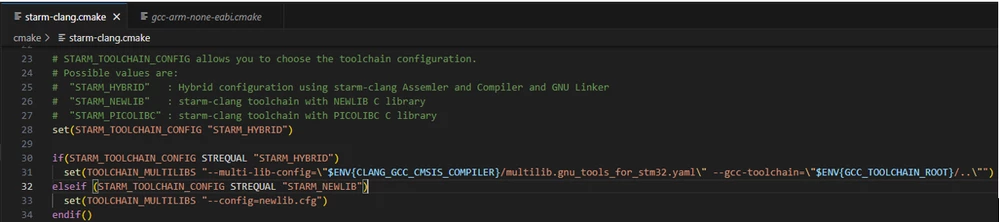
By default, the hybrid version of the ST Arm Clang toolchains is selected since it has the closest compatibility vs the existing GNU tools for STM32. We recommend developers to try building and testing their code with this toolchain. This transitional step will help them become more familiar with this version before using the full LLVM flavor relying on either Newlib or Picolib by switching the value of the variable STARM_TOOLCHAIN_CONFIG as seen above.
The STM32Cube for Visual Studio Code user guide provides additional documentation on ST Arm Clang and additional resources will be added soon based on feedback.
How to use ST Arm Clang with STM32CubeIDE
For the time being, ST Arm Clang is not integrated in the STM32CubeIDE installation package due to its significant size that could impair user experience. However, it will be supported in STM32CubeCLT from the 1.19.0 version. You can follow the steps below to install and set it up for your next project.
How to install STM32CubeCLT
- Download STM32CubeCLT from this link: STM32CubeCLT- STMicroelectronics
- Install the package using this document installation-guide-stmicroelectronics.pdf
How to import an STM32CubeMX project and initiate the Visual Studio Code environment
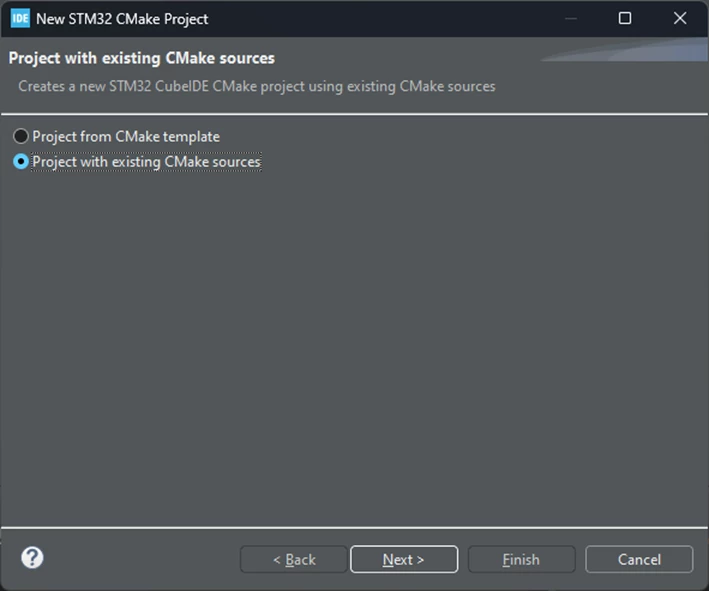
In STM32CubeIDE, go to File > New > STM32 CMake Project
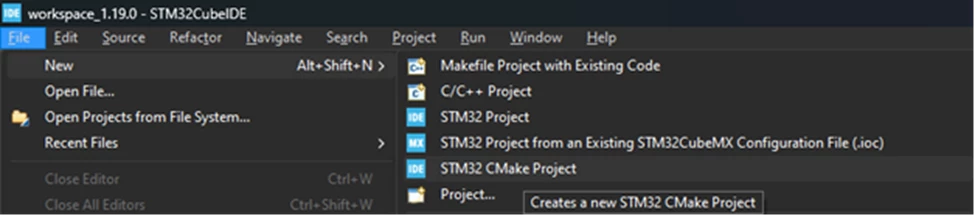
Since the project has been generated with STM32CubeMX, select “Project with existing CMake sources”.
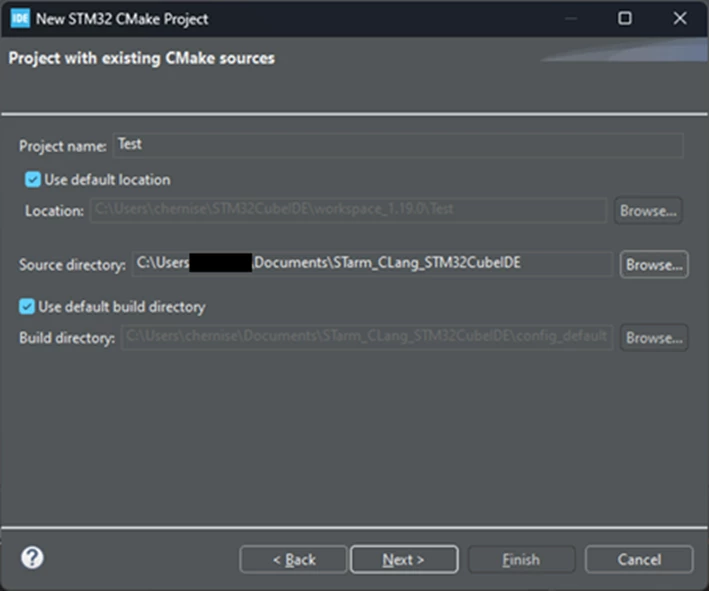
Name the project and select the folder containing the project generated with the STM32CubeMX.
The project will be imported into the current workspace.
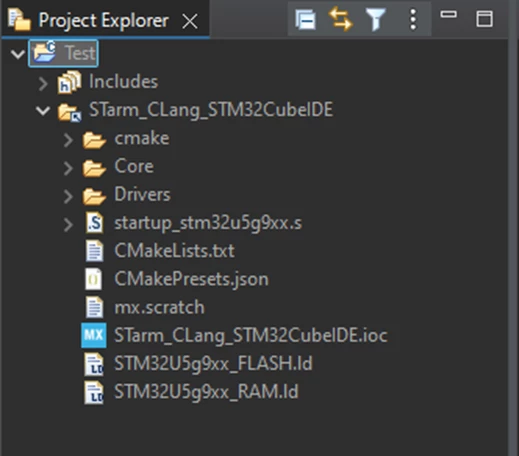
You can now start building your project. The compiler will be detected automatically.
Additional resources
- Product overview - STM32CubeMX
- Product overview - STM32Cube for Visual Studio Code
- STM32CubeCLT
- STM32CubeMX
- STM32Cube for Visual Studio Code
- Application note - CMake
First published on Jul 08, 2025