
Associate III
October 8, 2025
Solved

Resolve Clock issue

  • October 8, 2025
  • 4 replies
  • 394 views


Dear Support

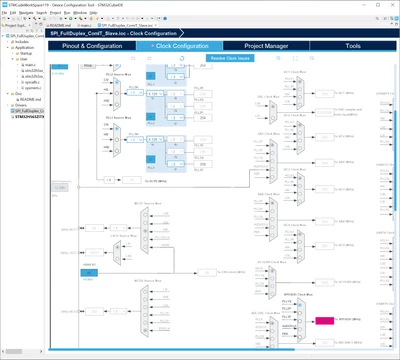
I am new to STM32CudeIDE - just downloaded latest v1.19 and opened a new example for Nucleo-H563Zi board, SPI_FullDuplex_ComIT_Slave and its .ioc file, as soon as I opened it, it tell me there is a Clock Configuration issue and need to resolve - as it highlighted in red below, is this a bug?
 

Ping1_0-1759908918915.png

Please advise what i need to do in order to let it work.

Regards!

Ping
  

Best answer by Souhaib MAZHOUD

Hello @Ping1 

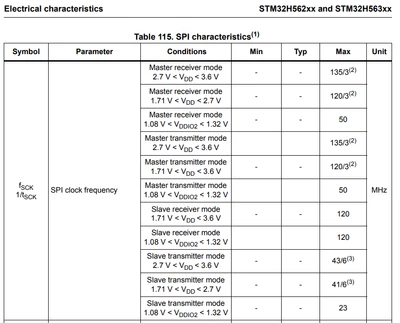
Yes it is important to adjust your clock to match with spi maximum clock condition.
you can find the maximum SPI clock frequency in DS14258 Table 115. as below:

SouhaibMAZHOUD_0-1760460619378.png

KR, Souhaib


4 replies

Technical Moderator
October 8, 2025

Hello @Ping1 

This is a normal behavior in STM32CubeMX, you should just click on Resolve Clock Issues above.

KR, Souhaib

To give better visibility on the answered topics, please click on Accept as Solution on the reply which solved your issue or answered your question.
Ping1Author
Associate III
October 14, 2025

Thanks for reply, Souhaib

When i do Resolve Clock Issue, my major clock change too, it ends up in 64MHz, which is not right. So do i need to manually adjust each clock? What is the maximum clock that SPI bus need to have ?

Regards!

Ping

Souhaib MAZHOUDBest answer
Technical Moderator
October 14, 2025

Hello @Ping1 

Yes it is important to adjust your clock to match with spi maximum clock condition.
you can find the maximum SPI clock frequency in DS14258 Table 115. as below:

SouhaibMAZHOUD_0-1760460619378.png

KR, Souhaib


To give better visibility on the answered topics, please click on Accept as Solution on the reply which solved your issue or answered your question.
AScha.3
Super User
October 14, 2025

Hi,

>as it highlighted in red below, is this a bug?

Yes, your bug. Cube just shows: this is wrong , = red. (if you go with mouse there, it shows the allowed limit)

+

>Please advise what i need to do in order to let it work.

Set all clocks to the allowed values, as you like. (There is no Ai , knowing what you want.)

"If you feel a post has answered your question, please click ""Accept as Solution""."
Visitor II
October 14, 2025

happens a lot when you open older examples in a newer CubeIDE/CubeMX—the clock rules got stricter, so the .ioc lights up red even though the project’s fine. It’s not your board; it’s the clock tree wanting you to re-confirm sources and limits.

open the .ioc, go to “Clock Configuration”, and hit “Resolve Clock Issues”. for a Nucleo, start simple: set SYSCLK to HSI first (no PLL), apply, and let the reds clear. many Nucleo H5 revisions don’t actually use an external crystal by default, so if HSE is enabled and red, turn HSE off (or turn off “bypass”) and keep HSI as the source. once it’s clean on HSI, enable PLL1 again if you want higher frequency and use the built-in helpers (“Set to Max” / validate) so Cube keeps AHB/APB under their limits. if anything goes red, it’s usually a bus divider or a peripheral clock you can nudge one step.

also check “Pinout & Configuration → RCC” to make sure your source selections match what you just set in the clock tree, then “Project Manager → Firmware Package” and confirm the STM32CubeH5 package matches whatever the example expects. if Cube prompts to update/convert the project, accept it, then click “Generate Code” and do a clean build.

if it still complains, share which node is red in the clock diagram (HSE, PLL1, or SYSCLK) and I’ll tell you exactly which toggle/divider to flip.

Ping1Author
Associate III
October 15, 2025

Thank you for explaining!

BR