

Configuring DSP libraries on STM32CubeIDE
Note: If you are using CMSIS V 5.8.0, refer to the article below.
How to integrate CMSIS-DSP libraries on a STM32 project.
1. Installing the required tools and generating the project:
First, install the tools required, STM32CubeIDE, STM32CubeMX, STM32CubeProgrammer. Please follow the steps presented in the STM32StepByStepTutorial: Step1 Tools installation.
The next step is to start the project, if you have a ready project, please go directly to the 2nd section, Including the DSP libraries and header files.
Otherwise, to create an STM32CubeIDE project, you can refer to 2.2 section of the UM2609.
|
Note:
|
- After launching the project, you will find it, as well as the generated .ioc file, in the workspace.
- You can select the different pinouts and/or the clock to configure within STM32CubeIDE without launching the STM32CubeMX.
- After finishing the settings, just save the file.
- A popup appears asking to generate the project, at this point just click on "Yes" and the updates will be made directly on the code project.
2. Including the DSP libraries and header files
Here are the steps to follow to copy the DSP drivers into the project:
-
Support DSP in the project workspace
-
In the generated project, create a folder under ..\Drivers\CMSIS named DSP.
-
Copy <STM32Cube_Repository>\STM32Cube_FW_F4_V.X.XX.X\Drivers\CMSIS\DSP\Include and paste in in the created folder
-
Copy <STM32Cube_Repository>\STM32Cube_FW_F4_V.X.XX.X\Drivers\CMSIS\Lib and paste it under ..\Drivers\CMSIS.
After being copied and refreshing the project, the added folders appear automatically in the STM32CubeIDE workspace: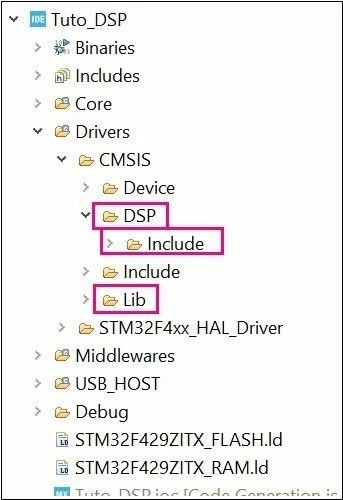
ii. Include paths
The purpose of this part is to describe the steps to follow in order to support new header files:
-
Select the project from the Project Explorer section
-
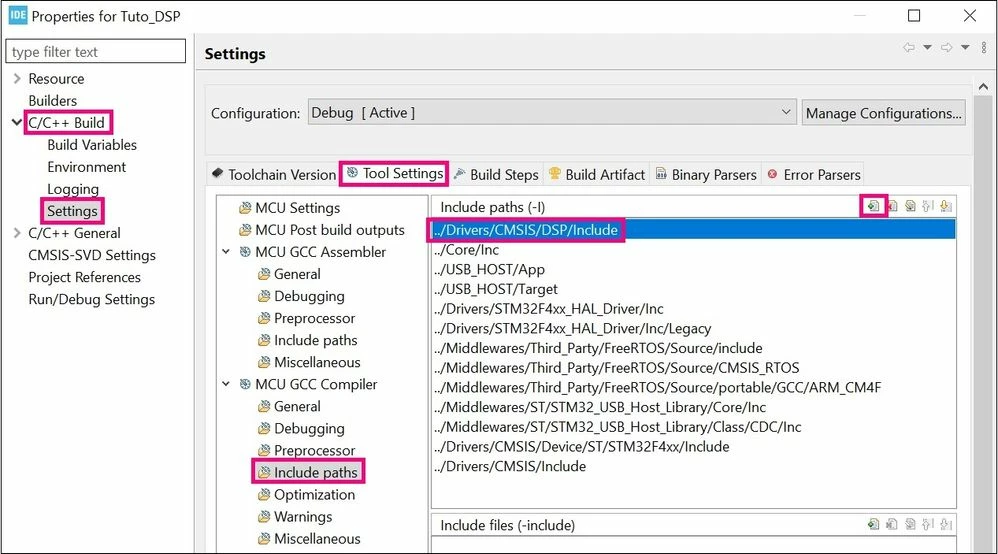
From Project menu or File menu, go to Project properties > C/C++ Build >
Settings > Tool Settings > MCU GCC Compiler > Include paths.
-
Click on “Add” to include the new paths.
-
Add ../Drivers/CMSIS/DSP/Include path
iii. Update libraries
The purpose of this part is to describe how to update the libraries in the project.
The first step is to add the libraries' path in the project settings:
-
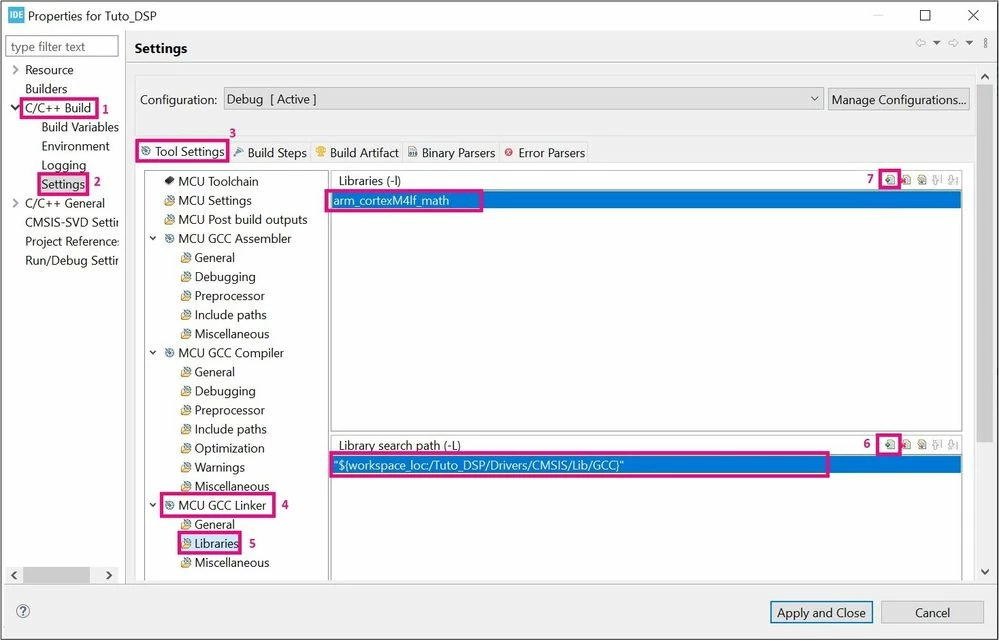
Select the project from the Project Explorer section, then from Project menu or File menu, go to Properties > C/C++ Build > Settings > Tool Settings > MCU CGC Linker > Libraries > Library search Path > Add.
-
Select the GCC library present in the workspace path: ../Drivers/CMSIS/Lib/GCC.
-
Now, to add the specific library to work with, select the project from the Project Explorer section.
-
From Project menu or File menu, go to Properties > C/C++ Build > Settings > Tool Settings > MCU CGC Linker > Libraries > Libraries (-l) > Add and insert the following library: "arm_cortexM4lf_math".
Warning:
-
Make sure that you are using the “/” and not the “\” in the paths.
-
Do not use “:libarmcortexM4lf_math.a”. This usage is not recommended as it can lead to side-effects in some use cases.
- Use "arm_cortexM4l_math" with STM32WL series.
The final step, is to add the “ARM_MATH_CM4” symbol to the project, as presented in the photo below: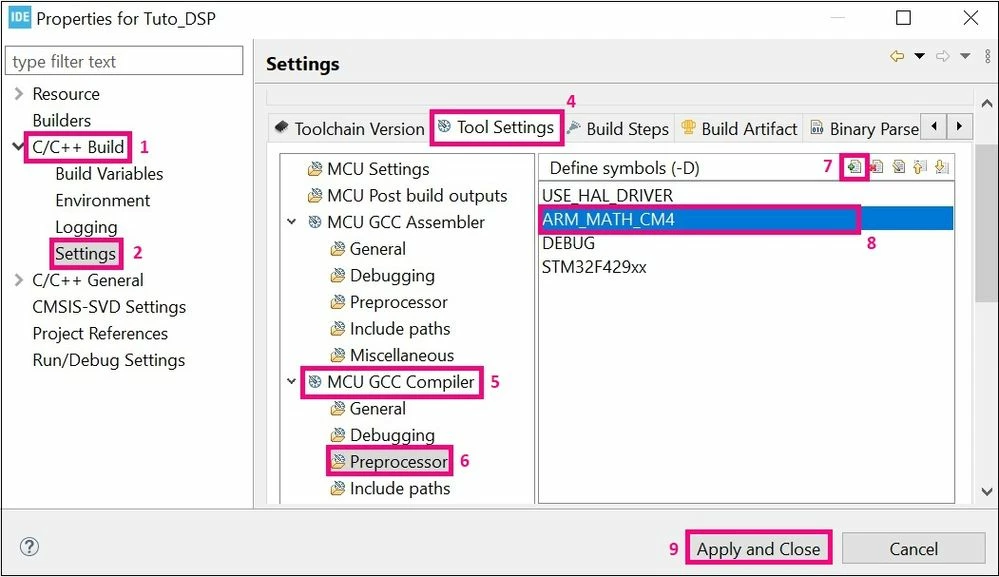
|
Note: |
Now you can use the DSP libraries in your project, after including the required header file, for the following example here is "arm_math.h" and declaring the used variables:
/* USER CODE BEGIN PV */
float32_t FFT_Input_Q15_f[50];
float32_t aFFT_Input_Q15[50];
/* USER CODE END PV */
/* USER CODE BEGIN PD */
#define FFT_Length 1024
/* USER CODE END PD */
Let’s take the example of using the “arm_float_to_q15” function:
/* USER CODE BEGIN 1 */
	arm_float_to_q15((float32_t *)&FFT_Input_Q15_f[0], (q15_t *)&aFFT_Input_Q15[0], FFT_Length*2);
/* USER CODE END 1 */
Warning:
- Please note that the use of the previous function is a form of guidelines only.
Finally, you can also download the example based on the STM32Cube HAL drivers Digital Signal Processing with STM32, software expansion for STM32Cube . You can refer to this example as a complete use-case of DSP.