ChahinezC
Technical Moderator
April 1, 2021

Configuring DSP libraries on STM32CubeIDE

  • April 1, 2021
  • 16 replies
  • 96177 views
This FAQ concerns the DSP Libraries, how to integrate them in an STM32CubeIDE project and to execute an example based on the Digital Signal Processing

Note: If you are using CMSIS V 5.8.0, refer to the article below. 
How to integrate CMSIS-DSP libraries on a STM32 project.
After finishing this tutorial, you will know more about the DSP libraries of STM32 products, adding, configuring, and manipulating them using the STM32CubeIDE tool chain.
 

1. Installing the required tools and generating the project:

First, install the tools required, STM32CubeIDE, STM32CubeMX, STM32CubeProgrammer. Please follow the steps presented in the STM32StepByStepTutorial: Step1 Tools installation.
 

The next step is to start the project, if you have a ready project, please go directly to the 2nd section,  Including the DSP libraries and header files.

Otherwise, to create an STM32CubeIDE project, you can refer to 2.2 section of the UM2609.
 

       Note:

  •  The versions used in this tutorial are, 1.5.1 for STM32CubeIDE, and 6.1.1 for STM32CubeMX. Please make sure to always upgrade the tools' versions you are using.
  • The board used in this tutorial is STM32F429 Discovery.


  • After launching the project, you will find it, as well as the generated .ioc file, in the workspace.
  • You can select the different pinouts and/or the clock to configure within STM32CubeIDE without launching the STM32CubeMX.
  • After finishing the settings, just save the file.
  • A popup appears asking to generate the project, at this point just click on "Yes" and the updates will be made directly on the code project.

2. Including the DSP libraries and header files

Here are the steps to follow to copy the DSP drivers into the project:

  1. Support DSP in the project workspace

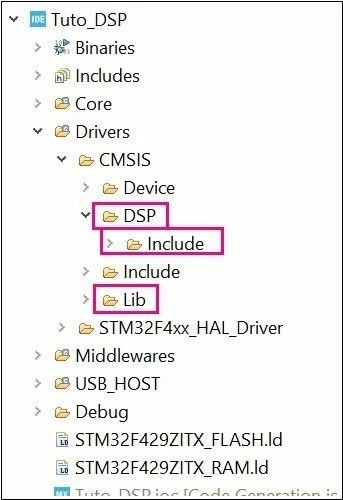
  • In the generated project, create a folder under ..\Drivers\CMSIS named DSP.

  • Copy <STM32Cube_Repository>\STM32Cube_FW_F4_V.X.XX.X\Drivers\CMSIS\DSP\Include and paste in in the created folder

  •  Copy <STM32Cube_Repository>\STM32Cube_FW_F4_V.X.XX.X\Drivers\CMSIS\Lib and paste it under ..\Drivers\CMSIS.

After being copied and refreshing the project, the added folders appear automatically in the STM32CubeIDE workspace:
1300.jpg

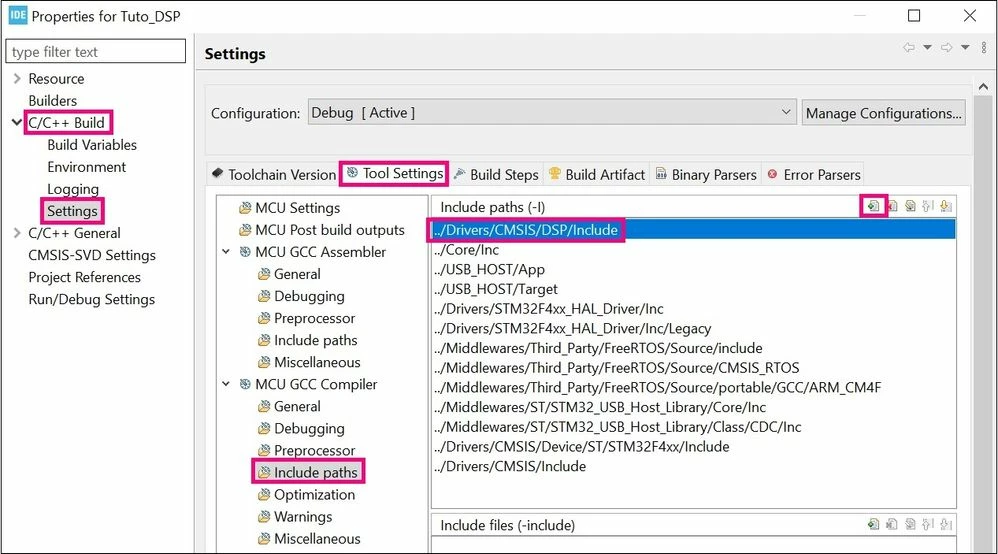
           ii. Include paths

The purpose of this part is to describe the steps to follow in order to support new header files:

  • Select the project from the Project Explorer section

  • From Project menu or File menu, go to Project properties > C/C++ Build >

Settings > Tool Settings > MCU GCC Compiler > Include paths.

  • Click on “Add” to include the new paths.

  • Add ../Drivers/CMSIS/DSP/Include path

    1301.jpg

          iii. Update libraries

The purpose of this part is to describe how to update the libraries in the project.
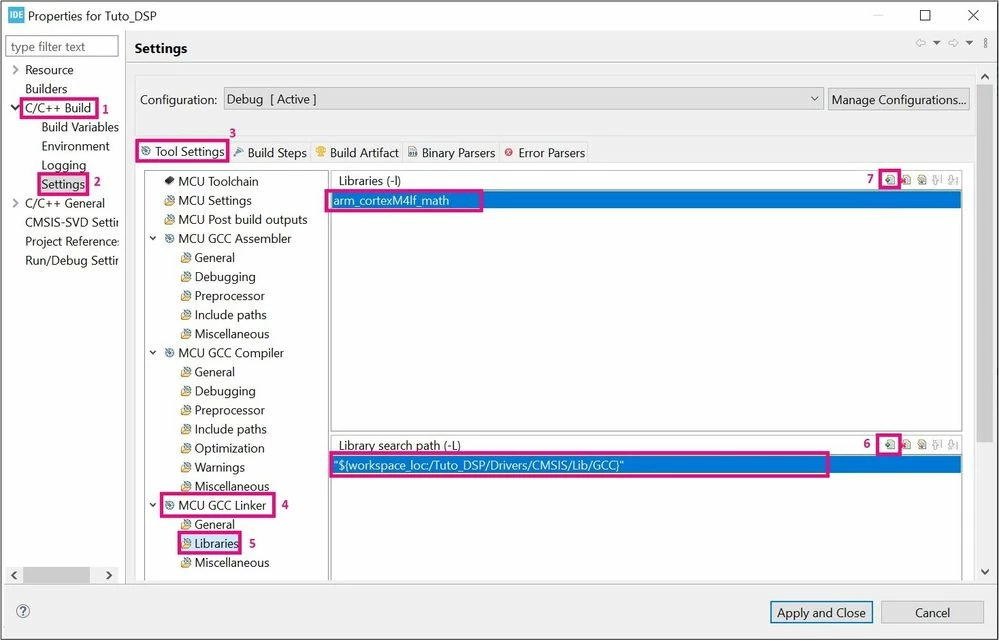
The first step is to add the libraries' path in the project settings:
 

  • Select the project from the Project Explorer section, then from Project menu or File menu, go to Properties > C/C++ Build > Settings > Tool Settings > MCU CGC Linker > Libraries > Library search Path > Add.

  • Select the GCC library present in the workspace path: ../Drivers/CMSIS/Lib/GCC.

  • Now, to add the specific library to work with, select the project from the Project Explorer section.

  • From Project menu or File menu, go to Properties > C/C++ Build > Settings > Tool Settings > MCU CGC Linker > Libraries > Libraries (-l) > Add and insert the following library: "arm_cortexM4lf_math".
    1303.jpg

Warning:

  • Make sure that you are using the “/” and not the “\” in the paths.

  • Do not use “:libarmcortexM4lf_math.a”. This usage is not recommended as it can lead to side-effects in some use cases.

  • Use "arm_cortexM4l_math" with STM32WL series.

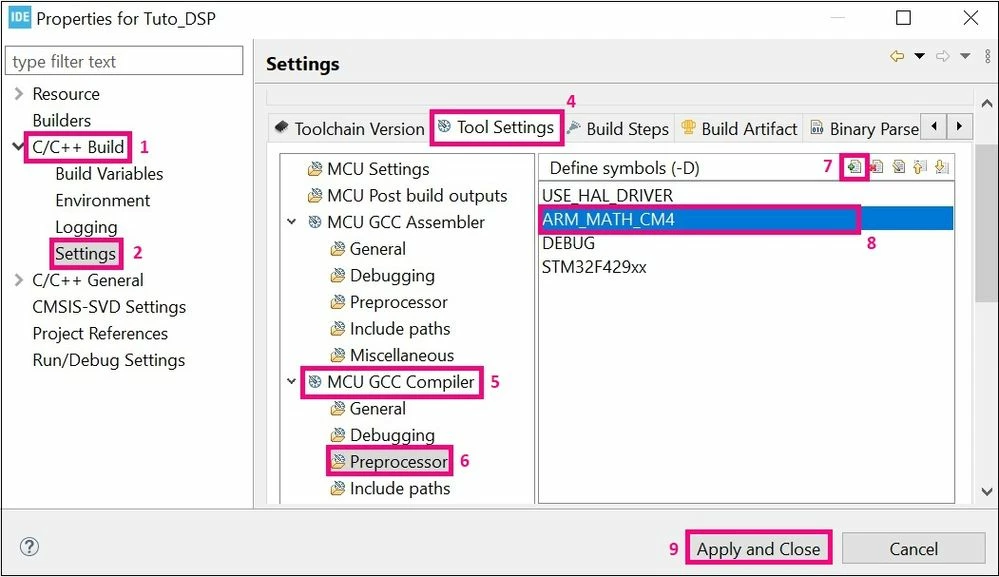
The final step, is to add the “ARM_MATH_CM4” symbol to the project, as presented in the photo below:
1304.jpg

 Note: 
  Please do not forget that this step depends on the core you are using.


Now you can use the DSP libraries in your project, after including the required header file, for the following example here is "arm_math.h" and declaring the used variables:
 

/* USER CODE BEGIN PV */
float32_t FFT_Input_Q15_f[50];
float32_t aFFT_Input_Q15[50];
/* USER CODE END PV */
/* USER CODE BEGIN PD */
#define FFT_Length 1024
/* USER CODE END PD */

Let’s take the example of using the “arm_float_to_q15” function:


/* USER CODE BEGIN 1 */
	arm_float_to_q15((float32_t *)&FFT_Input_Q15_f[0], (q15_t *)&aFFT_Input_Q15[0], FFT_Length*2);
/* USER CODE END 1 */


Warning:

  • Please note that the use of the previous function is a form of guidelines only.

Finally, you can also download the example based on the STM32Cube HAL drivers Digital Signal Processing with STM32, software expansion for STM32Cube . You can refer to this example as a complete use-case of DSP. 
 

16 replies

HKryn.1
Visitor II
March 8, 2022

I am amazed how this whole tutorial is extremely well presented (including the other tutorials linked) and for the first time in my life everything just works.

Thank you so much !

GMate.11
Associate
April 8, 2022

Hi Laura,

Im working with a G4 (STM32G491IE), and i would like to implement DSP functions on my project. However i did not find any CMSIS libraries for G4(in special the arm_cortexM4lf_math.a).

Actually the STM32CUBEIDE do not generates any CMSIS folder on Drivers folder.

So...It is posible to include DSP fucntions on a G4?

Do you have any example or experience related to?.

I appreciaty any comment about it.

AWall.4
Associate
April 14, 2022

What does this path mean?

  • Copy <STM32Cube_Repository>\STM32Cube_FW_F4_V.X.XX.X\Drivers\CMSIS\DSP\Include and paste in in the created folder
  •  Copy <STM32Cube_Repository>\STM32Cube_FW_F4_V.X.XX.X\Drivers\CMSIS\Lib and paste it under ..\Drivers\CMSIS.

I dont have this path. Do I have to download something?

ChahinezC
ChahinezCAuthor
Technical Moderator
May 11, 2022

Hello @Community member​,

When generating the project using STM32CubeMX and STM32CubeIDE, the DSP files are not generated automatically. To include them manually and use them within your project I recommend you referring to the "Configuring DSP libraries on STM32CubeIDE" article using the "STM32Cube_Repository>\STM32Cube_FW_F4_V.X.XX.X\Drivers\CMSIS\DSP" files.

  • It is possible to include DSP functions on a G4?

Yes it is indeed possible after following the steps described in the FAQ article.

  • Do you have any example or experience related to?

You can check the example based on the STM32Cube HAL drivers Digital Signal Processing with STM32, software expansion for STM32Cube (X-CUBE-DSPDEMO). It demonstrates the usage of DSP library provided within the CMSIS and includes an FFT example and an FIR example to show a full integration with the STM32 families using its peripherals.

For more details, please refer to the application note Digital signal processing for STM32 microcontrollers using CMSIS (AN4841).

I Hope my answer helps you.

Chahinez.

YOU Bunleng
Associate
November 21, 2022

Hi @Laura C.​ 

I am with the Stm32wle5jc how can I recover the file <STM32Cube_Repository>\STM32Cube_FW_F4_V.X.XX.X\Drivers\CMSIS\DSP\Include corresponding to my stm32?

ChahinezC
ChahinezCAuthor
Technical Moderator
November 29, 2022

Hello @YOU Bunleng​,

When using STM32WL device, please use the STM32Cube_FW of the STM32WL, downloaded same as the STM32Cube_FW_F4 from the official ST Website or you can use STM32CubeMX feature, refer to the "3.4.3 Installing STM32 MCU packages" section of the UM1718.

Regards,

Chahinez.

SSorr.1
Associate II
December 1, 2022

What is the procedure for STM32H7?

Tim Langer
Visitor II
December 19, 2022

Hey SSorr.1: I just ran the process for a STM32L4, it should be similar for the H7.

For me and my L4, the path mentioned under "2. Including the DSP libraries and header files" was:

C:\Users\<Your Windows User Name>\STM32Cube\Repository\STM32Cube_FW_L4_V1.17.2\Drivers\CMSIS\DSP\

Instead of "STM32Cube_FW_L4_V1.17.2", you will then have something like "STM32Cube_FW_H7_Vx.xx.x", you can find your existing version by scrolling through the folder (C:\Users\<Your Windows User Name>\STM32Cube\Repository\).

Then, for the including the linker library, it should be: arm_cortexH7lf_math (again, you find this under the GCC folder specified above, just drop the initial "lib" of the *.A filename).

Kind regards,

Tim

Tim Langer
Visitor II
December 19, 2022

@Laura C.​: I think, under "2. Including the DSP libraries and header files", the second path is missing something. It should be:

Instead of: "STM32Cube_Repository>\STM32Cube_FW_F4_V.X.XX.X\Drivers\CMSIS\Lib"

It should be: "STM32Cube_Repository>\STM32Cube_FW_F4_V.X.XX.X\Drivers\CMSIS\DSP\Lib",

at least this is where I found the files and after which I could compile my CMSIS DSP code. Is this correct?

Kind regards,

Tim

Associate II
July 31, 2023

There doesn't seem to be any consistency with the actual libraries location for some families it is in CMSIS/Lib while for others it is CMSIS/DSP/Lib.

@ChahinezC for the STM32H5 family the library is completely missing in the firmware package. There is an include file but that is all. Is there any chance of getting this rectified?

Cheers
Simon