ST AME Support NF
ST Employee
November 16, 2021

How to redirect the printf function to a UART for debug messages

  • November 16, 2021
  • 27 replies
  • 140597 views

Introduction

It can be especially useful during code development to display messages in a terminal window about various system parameters to help with debugging. An easy way to do that is to use the printf function and redirect the output to a UART for display in a terminal window.

The STLINK embedded on ST Nucleo boards have a virtual COM port feature, and we can easily get debugging information on a terminal using printf redirected to the UART of the STM32 connected to the STLINK pins used for the virtual COM port.
In this article, I show you how to redirect the printf output to the STM32 UART peripheral that connects to the UART pins on the embedded STLINK. It transmits to the host computer and displays via a Windows terminal program, Tera Term.
 

1. Prerequisites

Hardware

  • Micro USB cable: in order to power and program the board
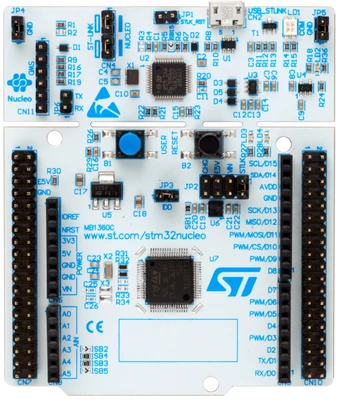
  • NUCLEO-G070RB

1891.png
 
Software

2. Theory

On the NUCLEO-G070RB board, the embedded ST-LINK/V2 is connected to PA2 (UART TX) and PA3 (UART RX) of the target STM32G070 device. 

These port pins have USART2 alternate functions. Printf is redirected to use PA2 and PA3. We then use a terminal connected to the virtual COM port of the ST-LINK of the Nucleo board to display the printf messages.
 

3. Steps

  1. Open STM32CubeIDE
  2. Create a new project using the NUCLEO-G070RB board
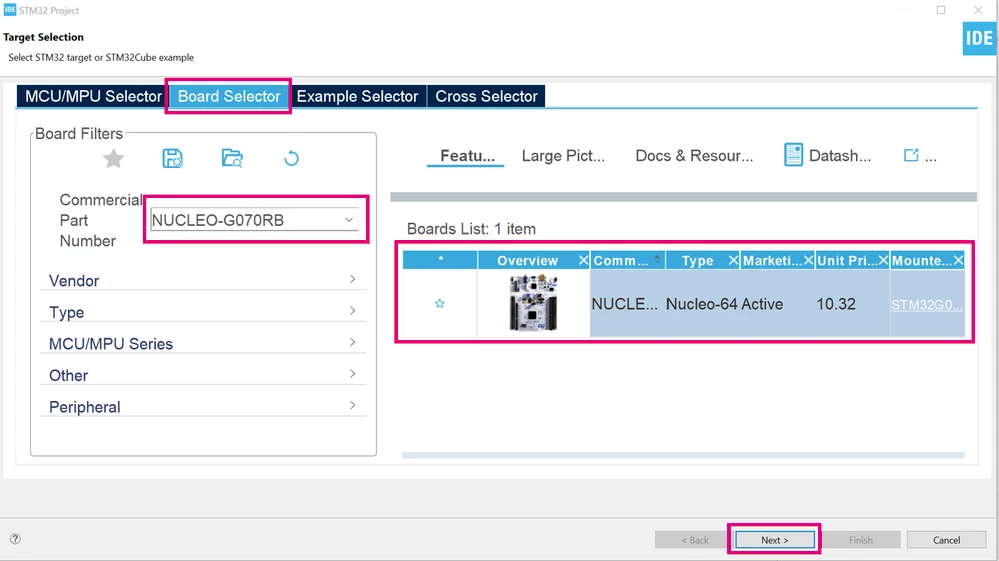

3. steps 1.png
 

  1. Give a name to the project
  • For this example, the project name is “Printf”.
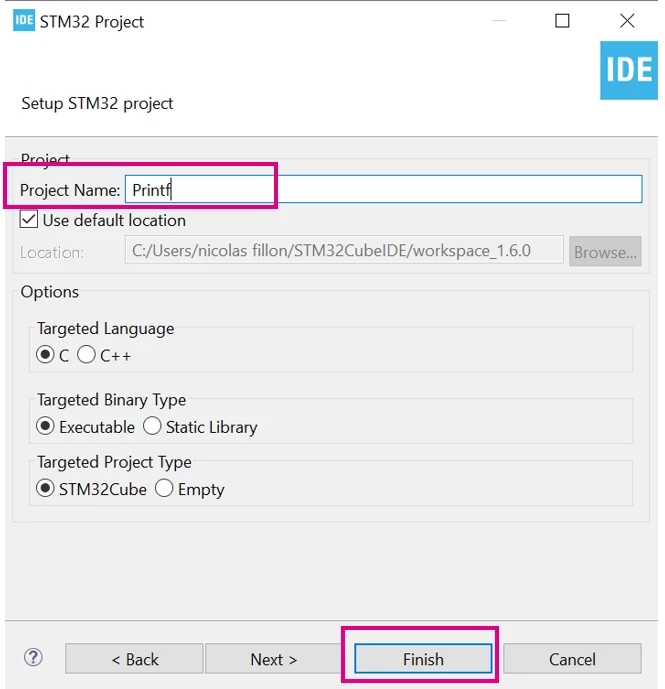
3. steps 2.png
 

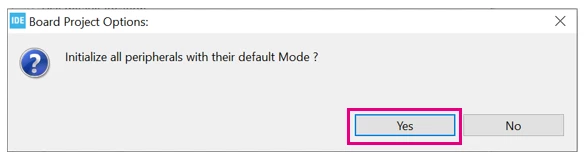
  1. Initialize all peripherals with their default settings:
  • To do this, click on [Yes].

3. steps 3.png
 

  1. Make sure that USART2 has been selected, configured, and mapped to PA2 and PA3 as shown below:
  • By default, this was configured when starting the project from the Nucleo board that was selected.
  • First make sure that USART2 is activated as shown here:
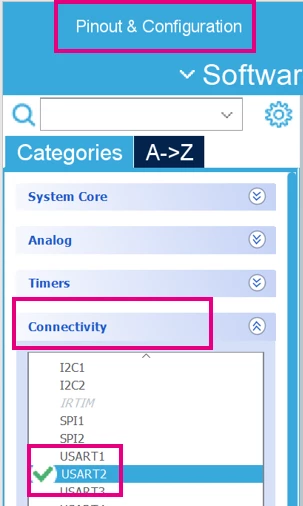

3. steps 4.png


  • It should be configured in Asynchronous mode with the following settings as shown below in the red rectangles:
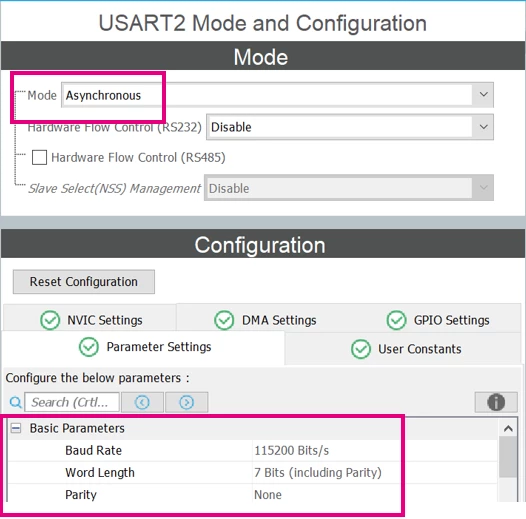
 

3. steps 5.png


  • Make sure the USART2 alternate functions have been mapped to PA2 and P3 that are connected to the TX and RX pins (respectively) of the ST-LINK on the Nucleo board.
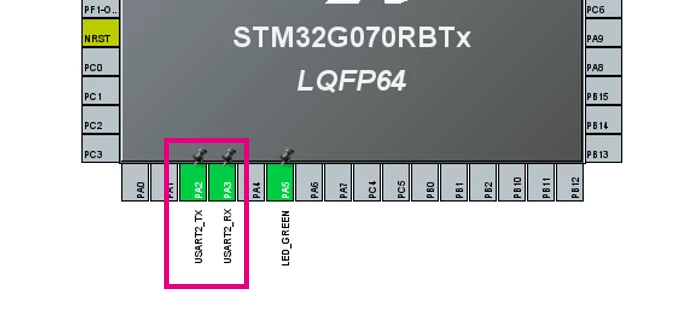
 

3. steps 6.png

  1. Generate the code
  • Saving the project generates the code.
  1. Add code for printf:
  • This code redirects the output of the printf function to the USART2. The printf function is calling fputc to transmit the output via the USART.
  • In main.c, add the following code:
/* USER CODE BEGIN PFP */
#define PUTCHAR_PROTOTYPE int __io_putchar(int ch)
/* USER CODE END PFP */
…
 /* USER CODE BEGIN WHILE */
 while (1)
 {
 printf("Hello World\n\r");
 HAL_Delay(1000);
 /* USER CODE END WHILE */

…
/* USER CODE BEGIN 4 */
/**
 * @brief Retargets the C library printf function to the USART.
 * None
 * @retval None
 */
PUTCHAR_PROTOTYPE
{
 /* Place your implementation of fputc here */
 /* e.g. write a character to the USART1 and Loop until the end of transmission */
 HAL_UART_Transmit(&huart2, (uint8_t *)&ch, 1, 0xFFFF);

 return ch;
}

/* USER CODE END 4 */
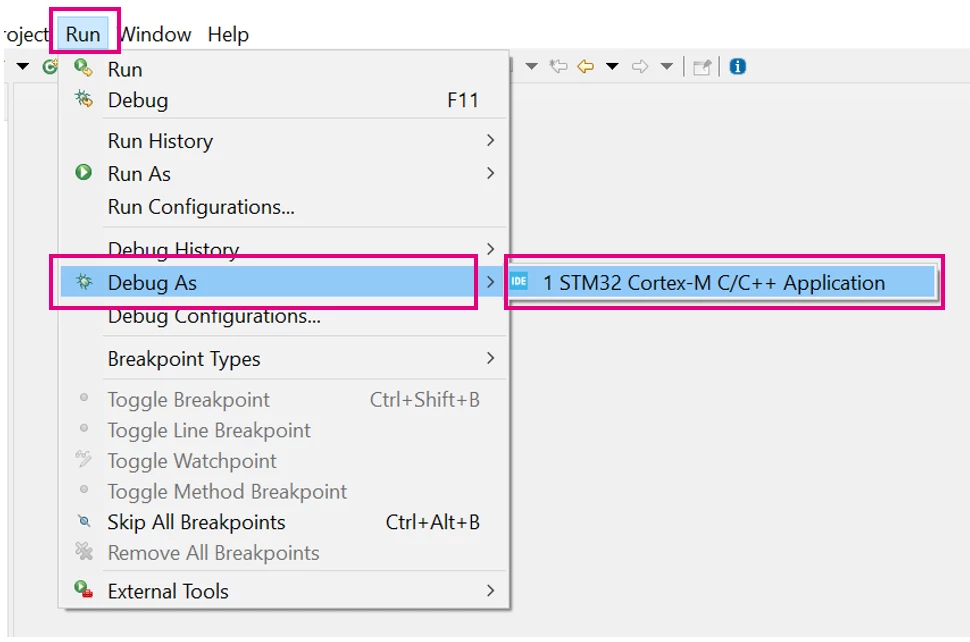
  1. Build the project, enter debug mode, and run the code.
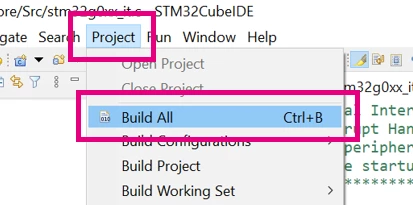
3. steps 7.png

To execute the code:

  • Enter the debug session.

3. steps 8.png


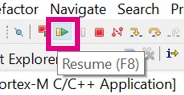
  • Execute the code.


3. steps 9.png


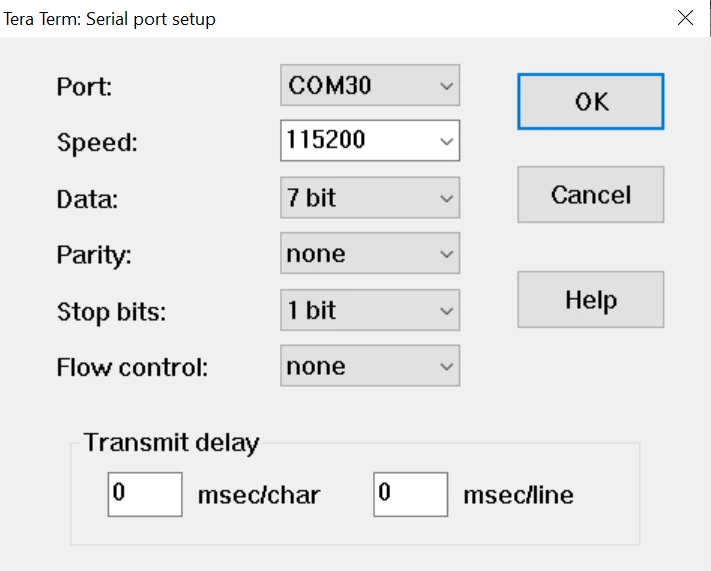
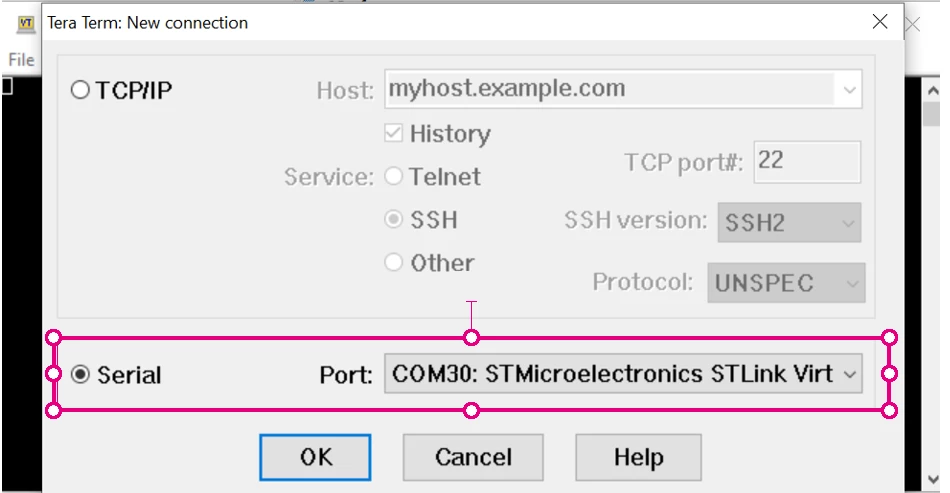
  • Open a terminal application like Tera Term.
  • Configure the serial port connection to the STLINK virtual COM port.
 

3. steps 10.png


  • Select the following settings.


1902.png


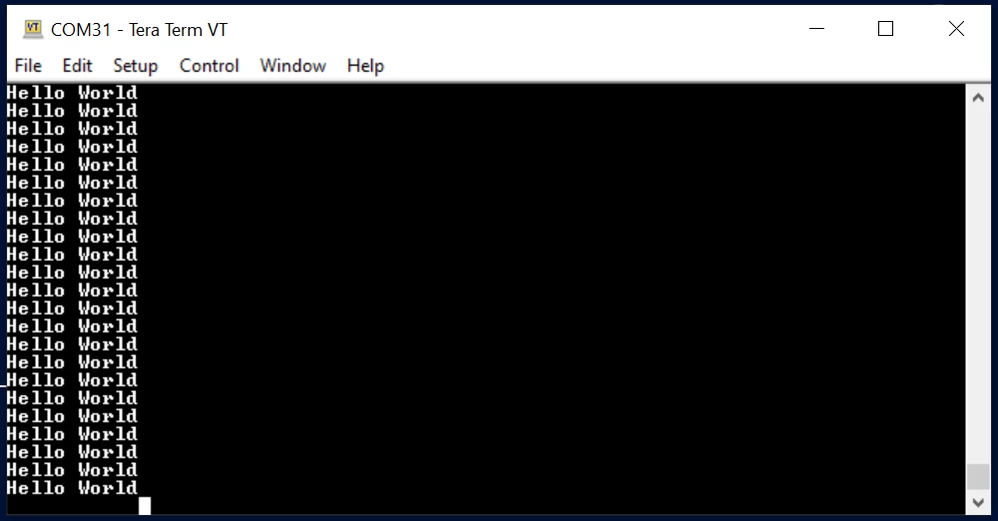
  • You now see the printf message, “Hello World”, being displayed every second.
 

1903.png


4. Related links

5. Notes

5.1 Tips when using C++

We need to update the _write and _read functions,

namespace std{
#ifdef __cplusplus
extern "C"{
#endif
int _write(int fd, char *ptr, int len){
 (void)fd;
 int i;
 for(i=0;i<len;i++){
 uart_write(*ptr++);
 }
 return len;
}

size_t _read(int fd, char *ptr, size_t len){
 (void)fd;
 size_t i;
 for(i=0;i<len;i++){
 *ptr++ = uart_read();
 uart_write(*ptr++); //For Terminal Echo
 }
 return i;
}

#ifdef __cpluscplus
}
#endif
}

And the main function.

int main(){
 setbuf(stdin,NULL); //TO HANDLE INPUT BUFFER WHEN USING SCANF/COUT
 printf("\rHello World\n\r");
 while(1);
}

5.2. Line-buffering

The default (well, GCC's default) is that stdout is line-buffered, that is, the output is not sent until a complete line has been formed.

This affects that the output does not actually appear until a new line is sent, for example:

printf( "Hello, " ); // No output here ...
printf( "World!" ); // ... still no output ...
printf( "\n" ); // Now the output appears!

This is a common cause of confusion, as many people expect that the output should appear immediately.

It is also worth noting that, by default, stderr is not line-buffered - so output does appear "immediately," for example:

fprintf( stderr, "Hello, " ); // output *does* appear here ...
fprintf( stderr, "World!" ); // ... and here ...
fprintf( stderr, "\n" ); // and here!
 

27 replies

c1ron
Associate II
December 14, 2021

I'm not getting the expected result from this article.

I don't see anything printed on the terminal. To test the virtual com port, I use the code:

 /* USER CODE BEGIN WHILE */
char data[] = {"Hey Universe\n\r"};
while (1)
{
	//printf("Hello World\n\r");
	HAL_Delay(1000);
 HAL_UART_Transmit(&huart2, (uint8_t*)&data, 20, 20);
/* USER CODE END WHILE */

This works fine. But if I uncomment the printf-statement, then nothing gets printed to the terminal !

That is, the printf-statement seems to mess up the code.

BTW, I'm using "RealTerm", with 115200 baudrate and 7-bit data-width.

Any ideas ?

YSONG.1
ST Employee
December 15, 2021

Yes, i also have the same problem. I'm also looking for answers.

Use printf will print nothing.

#include "main.h"
#include "stdio.h"

/* Private includes ----------------------------------------------------------*/
/* USER CODE BEGIN Includes */
/* USER CODE END Includes */

/* Private typedef -----------------------------------------------------------*/
/* USER CODE BEGIN PTD */
uint8_t buffer[10] = {'0','1','2','3','4','5','6','7','8','9'};
/* USER CODE END PTD */

/* Private define ------------------------------------------------------------*/
/* USER CODE BEGIN PD */
/* USER CODE END PD */

/* Private macro -------------------------------------------------------------*/
/* USER CODE BEGIN PM */
/* USER CODE END PM */

/* Private variables ---------------------------------------------------------*/
UART_HandleTypeDef huart2;

/* USER CODE BEGIN PV */
/* USER CODE END PV */

/* Private function prototypes -----------------------------------------------*/
void SystemClock_Config(void);
static void MX_GPIO_Init(void);
static void MX_USART2_UART_Init(void);

/* USER CODE BEGIN PFP */
/* USER CODE END PFP */

/* Private user code ---------------------------------------------------------*/
/* USER CODE BEGIN 0 */
/* USER CODE END 0 */

/* USER CODE BEGIN PFP */
#define PUTCHAR_PROTOTYPE int __io_putchar(int ch)
/* USER CODE END PFP */

/**
 * @brief The application entry point.
 * @retval int
 */
int main(void)
{
 /* USER CODE BEGIN 1 */
 /* USER CODE END 1 */

 /* MCU Configuration--------------------------------------------------------*/
 /* Reset of all peripherals, Initializes the Flash interface and the Systick. */
 HAL_Init();

 /* USER CODE BEGIN Init */
 /* USER CODE END Init */

 /* Configure the system clock */
 SystemClock_Config();

 /* USER CODE BEGIN SysInit */
 /* USER CODE END SysInit */

 /* Initialize all configured peripherals */
 MX_GPIO_Init();
 MX_USART2_UART_Init();

 /* USER CODE BEGIN 2 */
 /* USER CODE END 2 */

 /* Infinite loop */
 /* USER CODE BEGIN WHILE */
 while (1)
 {
 /* USER CODE END WHILE */

 /* USER CODE BEGIN 3 */
 /*HAL_UART_Transmit(&huart2,buffer,10,100);*/
 printf("Hello World\n\r");
 HAL_Delay(1000);
 //printf
 }
 /* USER CODE END 3 */
}

/* USER CODE BEGIN 4 */

/**
 * @brief Retargets the C library printf function to the USART.

 * @PAram None

 * @retval None

 */

PUTCHAR_PROTOTYPE

{

 /* Place your implementation of fputc here */

 /* e.g. write a character to the USART1 and Loop until the end of transmission */

 HAL_UART_Transmit(&huart2, (uint8_t *)&ch, 1, 0xFFFF);


 return ch;

}


/* USER CODE END 4 */


Matth1
Associate III
February 28, 2022

Thanks Laura, that's very useful for someone like me who's used to this type of debugging with Arduino.

Although, I think it could be helpful to indicate that this work with any Nucleo board, and that USART1 can be used, you just need to provide the proper handler in the PUTCHAR_PROTOTYPE. A newbie like me could be discouraged for not having the exact same board or not USART2 as in the example.

But one thing is weird : in the Pinout & Config section regarding USART1's Parameter Settings, I can only specify Word Length of 8 or 9 bits.

I tried with 8 bits and it worked.

AMuth.3
Associate III
October 22, 2022

Can I configure the USART in an already created/existing project and generate code as said in this article? If so how to do in STM32F4 Discovery board?

ST AME Support NF
ST Employee
October 22, 2022

Hi,

The ST-LINK in STM32F4 Discovery supports only SWD and not Virtual COM port.

BR

Nico.

AMuth.3
Associate III
October 23, 2022


_legacyfs_online_stmicro_images_0693W00000UoafAQAR.pngBut in the product link as given below

https://www.st.com/en/evaluation-tools/stm32f4discovery.html

It is showing as Virtual COM port is supported..

Please look that and confirm.

And what is SWD. Please explain.

ST AME Support NF
ST Employee
October 23, 2022

OK I see, there are 2 models for the STM32F4 Disco, if you are sure yours support virtual com port then yes you can use it. check what UART and I/Os form the STM32F4 are connected to RX and TX of the ST-LINK and use those when configuring your project.

ST AME Support NF
ST Employee
October 23, 2022

please refer to the user manual and schematics to see what IOs are connected the ST-LINK on your discovery kit.

AMuth.3
Associate III
October 28, 2022

I have followed the wiring connection recommended in the user manual of stm32f4 discovery board. I am getting junk characters in the terminal. What are the possible reasons for that. In the .ioc file for GPIO settings I have used "No Pull Up and No Pull down" option. will that be a problem?

AMuth.3
Associate III
October 28, 2022

I am able to print the desired characters now, but with the following bit-wise manipulation. Before passing the character to the function

HAL_UART_Transmit(&huart2, (uint8_t *)&ch, 1, 0xFFFF);

I had to do this

~(ch<<1);

and use the resulted value to pass to the function above.

Arrived at this solution when I studied the pattern of difference between desired character and the character that was printed in the console.

But don't know the reason for this. Can anybody say what is the reason? I am using STM32F4 Discover board.