
How to redirect the printf function to a UART for debug messages
Introduction
It can be especially useful during code development to display messages in a terminal window about various system parameters to help with debugging. An easy way to do that is to use the printf function and redirect the output to a UART for display in a terminal window.
The STLINK embedded on ST Nucleo boards have a virtual COM port feature, and we can easily get debugging information on a terminal using printf redirected to the UART of the STM32 connected to the STLINK pins used for the virtual COM port.
In this article, I show you how to redirect the printf output to the STM32 UART peripheral that connects to the UART pins on the embedded STLINK. It transmits to the host computer and displays via a Windows terminal program, Tera Term.
1. Prerequisites
Hardware
- Micro USB cable: in order to power and program the board
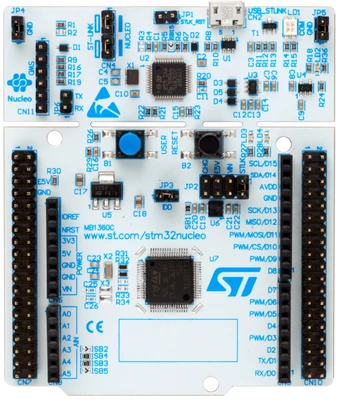
- NUCLEO-G070RB
Software
2. Theory
On the NUCLEO-G070RB board, the embedded ST-LINK/V2 is connected to PA2 (UART TX) and PA3 (UART RX) of the target STM32G070 device.
These port pins have USART2 alternate functions. Printf is redirected to use PA2 and PA3. We then use a terminal connected to the virtual COM port of the ST-LINK of the Nucleo board to display the printf messages.
3. Steps
- Open STM32CubeIDE
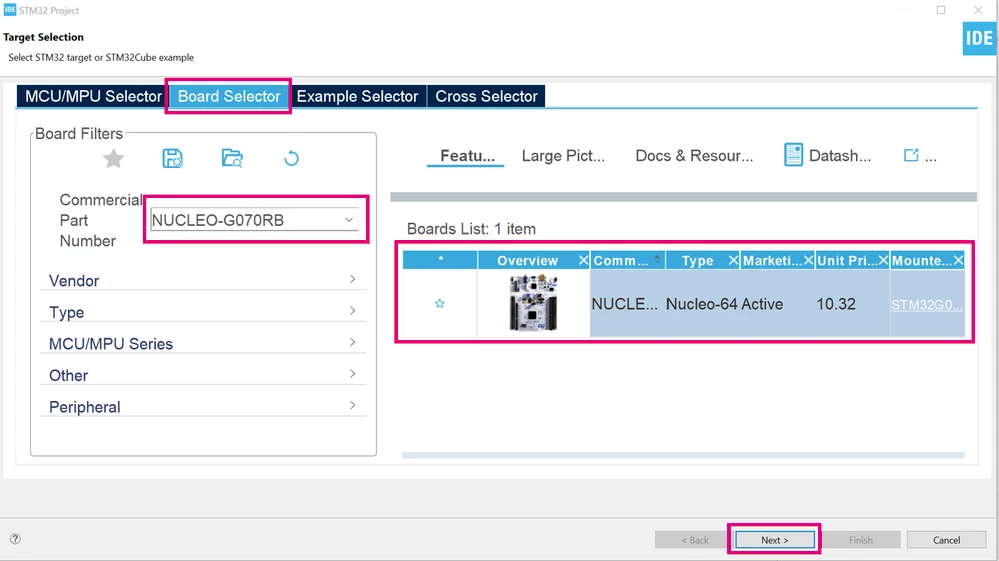
- Create a new project using the NUCLEO-G070RB board
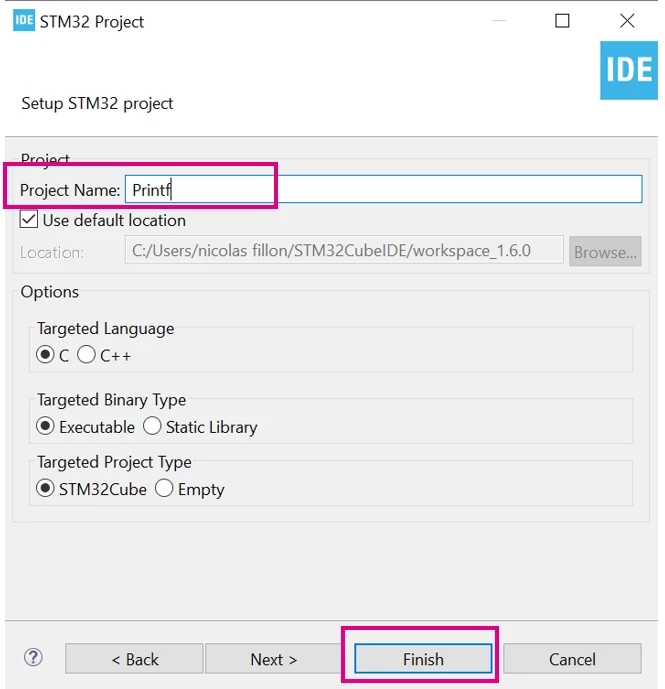
- Give a name to the project
- For this example, the project name is “Printf”.
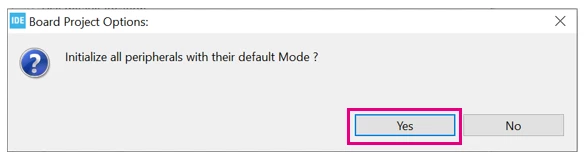
- Initialize all peripherals with their default settings:
- To do this, click on [Yes].
- Make sure that USART2 has been selected, configured, and mapped to PA2 and PA3 as shown below:
- By default, this was configured when starting the project from the Nucleo board that was selected.
- First make sure that USART2 is activated as shown here:
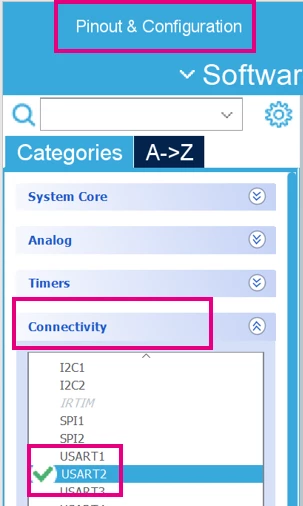
- It should be configured in Asynchronous mode with the following settings as shown below in the red rectangles:
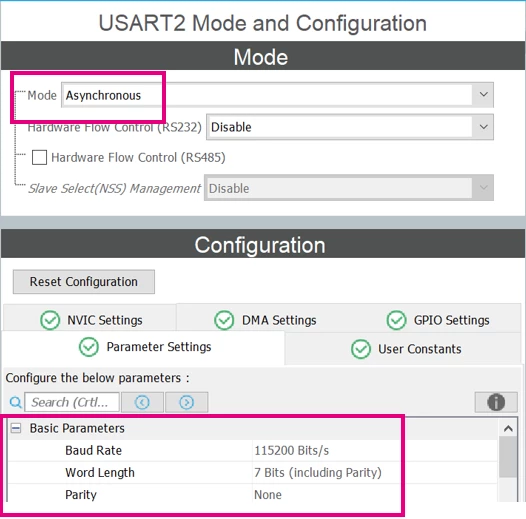
- Make sure the USART2 alternate functions have been mapped to PA2 and P3 that are connected to the TX and RX pins (respectively) of the ST-LINK on the Nucleo board.
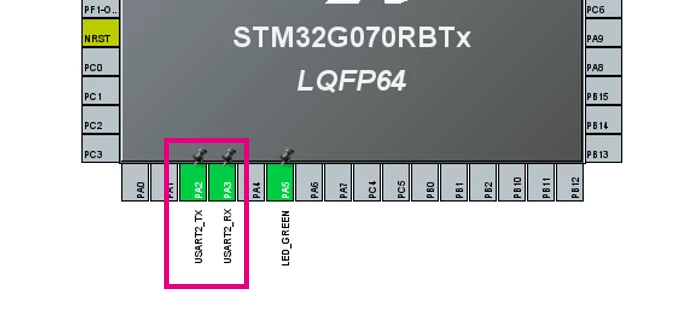
- Generate the code
- Saving the project generates the code.
- Add code for printf:
- This code redirects the output of the printf function to the USART2. The printf function is calling fputc to transmit the output via the USART.
- In main.c, add the following code:
/* USER CODE BEGIN PFP */
#define PUTCHAR_PROTOTYPE int __io_putchar(int ch)
/* USER CODE END PFP */
…
 /* USER CODE BEGIN WHILE */
 while (1)
 {
 printf("Hello World\n\r");
 HAL_Delay(1000);
 /* USER CODE END WHILE */

…
/* USER CODE BEGIN 4 */
/**
 * @brief Retargets the C library printf function to the USART.
 * None
 * @retval None
 */
PUTCHAR_PROTOTYPE
{
 /* Place your implementation of fputc here */
 /* e.g. write a character to the USART1 and Loop until the end of transmission */
 HAL_UART_Transmit(&huart2, (uint8_t *)&ch, 1, 0xFFFF);

 return ch;
}

/* USER CODE END 4 */- Build the project, enter debug mode, and run the code.
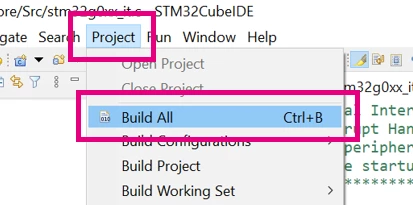
To execute the code:
- Enter the debug session.
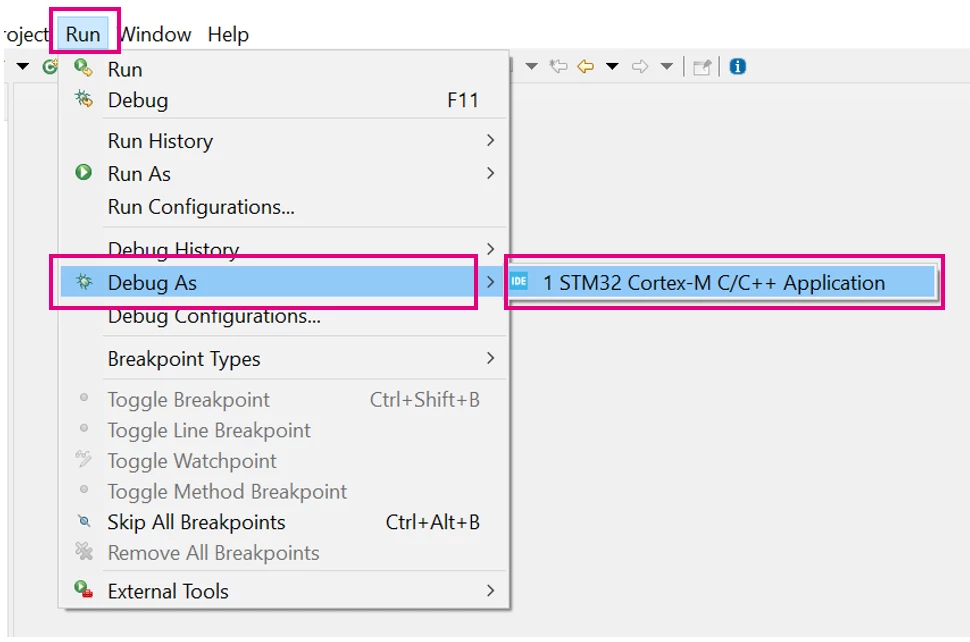
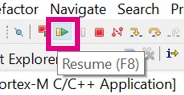
- Execute the code.
- Open a terminal application like Tera Term.
- Configure the serial port connection to the STLINK virtual COM port.
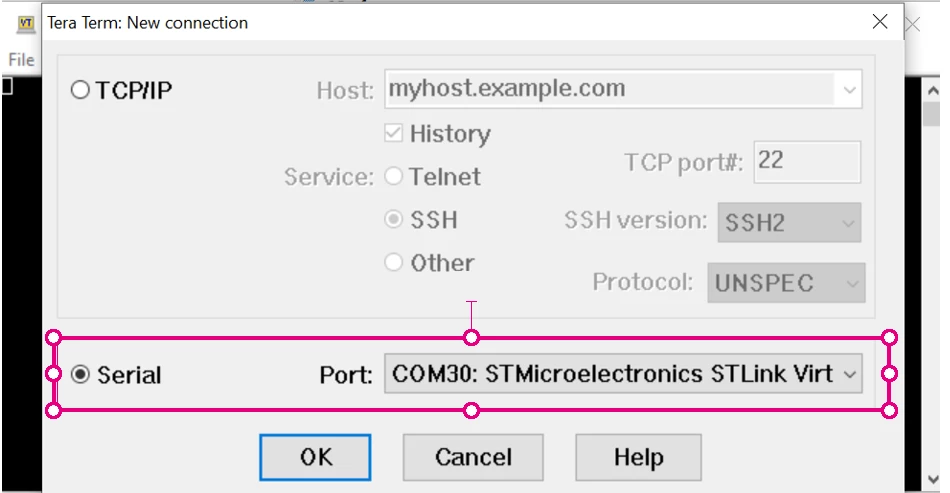
- Select the following settings.
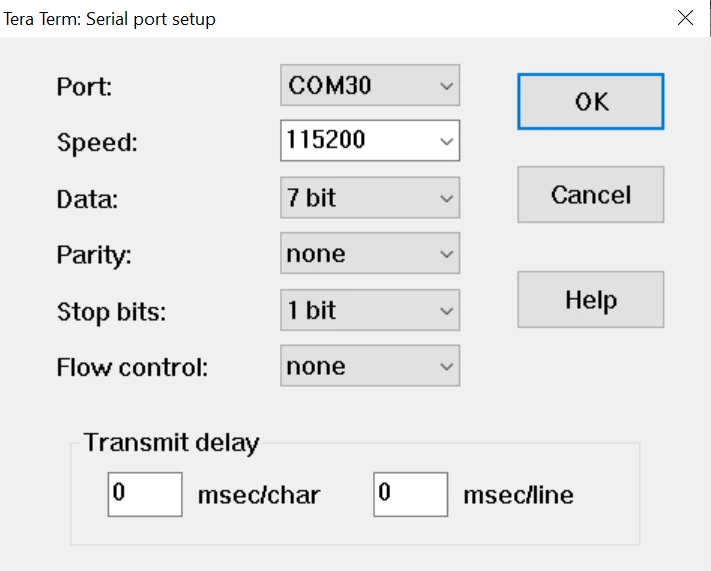
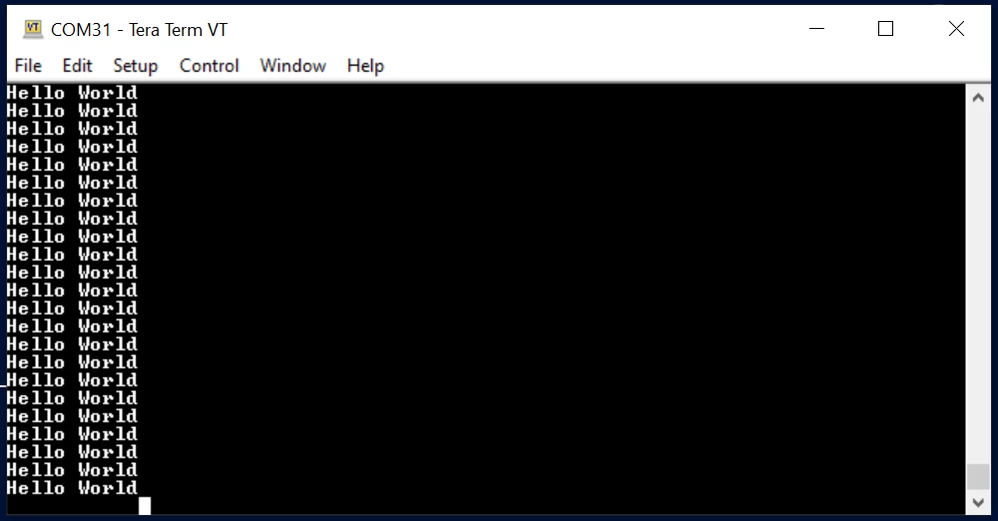
- You now see the printf message, “Hello World”, being displayed every second.
4. Related links
- Datasheet 12766: STM32G070CB/KB/RB
- Reference manual 0454: STM32G0x0 advanced Arm®-based 32-bit MCUs
- STM32CubeIDE
- NUCLEO-G070RB
- Tera Term
5. Notes
5.1 Tips when using C++
We need to update the _write and _read functions,
namespace std{
#ifdef __cplusplus
extern "C"{
#endif
int _write(int fd, char *ptr, int len){
 (void)fd;
 int i;
 for(i=0;i<len;i++){
 uart_write(*ptr++);
 }
 return len;
}

size_t _read(int fd, char *ptr, size_t len){
 (void)fd;
 size_t i;
 for(i=0;i<len;i++){
 *ptr++ = uart_read();
 uart_write(*ptr++); //For Terminal Echo
 }
 return i;
}

#ifdef __cpluscplus
}
#endif
}
And the main function.
int main(){
 setbuf(stdin,NULL); //TO HANDLE INPUT BUFFER WHEN USING SCANF/COUT
 printf("\rHello World\n\r");
 while(1);
}
5.2. Line-buffering
The default (well, GCC's default) is that stdout is line-buffered, that is, the output is not sent until a complete line has been formed.
This affects that the output does not actually appear until a new line is sent, for example:
printf( "Hello, " ); // No output here ...
printf( "World!" ); // ... still no output ...
printf( "\n" ); // Now the output appears!
This is a common cause of confusion, as many people expect that the output should appear immediately.
It is also worth noting that, by default, stderr is not line-buffered - so output does appear "immediately," for example:
fprintf( stderr, "Hello, " ); // output *does* appear here ...
fprintf( stderr, "World!" ); // ... and here ...
fprintf( stderr, "\n" ); // and here!