xSekigan
Associate
July 12, 2024
Solved

Can't connect STM32F103C8T6

  • July 12, 2024
  • 4 replies
  • 2699 views

I can connect in STM32CubeProgrammer my BluePill but can't do that in STM32CubeIDE. 

I fixed that my ST-LINK's pins were reverse in it. 

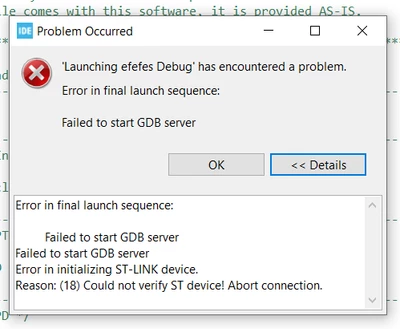
The problem I get is,

Error in initializing ST-LINK device.

Reason: ST-LINK: Could not verify ST device! Abort connection.

sil13.PNG

I have downloaded STSW-LINK009 already. Can you help me?

    Best answer by AScha.3

    1. Buy from distributor, st-link or nucleo board :

    https://www.mouser.de/ProductDetail/STMicroelectronics/STLINK-V3MINIE?qs=MyNHzdoqoQKcLQe5Jawcgw%3D%3D

    https://www.mouser.de/ProductDetail/STMicroelectronics/NUCLEO-F103RB?qs=fK8dlpkaUMs2W6dqxUbL2w%3D%3D


    2. If want cheap...from Ali or so, look for comments, that show: this is original STM on board.

    I have some BluePills with STM32 chip, but also 2 with CKS32 ... so read description carefully and comments.

    If no comments, that say "original STM" or "works with stm32IDE " , dont buy this.

    eg.

    Recently i buy this :

    https://de.aliexpress.com/item/1005006246566896.html?spm=a2g0o.order_list.order_list_main.5.21ef5c5fzMlpCu&gatewayAdapt=glo2deu

    Seems original STM chip, can debug in IDE . But at your own risk -- sometimes the chinese sellers get new parts - they dont know, and you will know, when you get it and test.


    4 replies

    STTwo-32
    Technical Moderator
    July 12, 2024

    Hello @xSekigan and welcome to the ST Community :smiling_face_with_smiling_eyes:.

    I think you are not using an original ST part but a counterfeit one. Thats why you are receiving this message.

    I suggest you verify that you are using genuine parts.

    Best Regards.

    STTwo-32

    xSekigan
    xSekiganAuthor
    Associate
    July 12, 2024

    You mean ST-LINK by ST? 

    Having said that, I had bought this from a local store here but never gave an error before.

    Worked with STM32L010C6T6 and LoRa last month and used this one. 

    I have bought a new laptop tho but I was sure that I had downloaded all that needed ://

    I better get a new one. Any chance port numbers collision since it's GDB server?

    Thank you, glad to be here. 

    STTwo-32
    Technical Moderator
    July 12, 2024

    I mean your STM32F103C8T6 may be not a genuine one. You have to always ensure buying genuine products.

    Best Regards.

    STTwo-32 

    AScha.3
    Super User
    July 12, 2024

    So with your none-STM chips -- you cannot debug in IDE. (IDE checks for genuine STM cpu there...)


    But you can make a program in IDE, compile, then use CubeProgrammer to flash your BluePill .


    If you want debug in IDE, buy an st-link with genuine STM cpu and also the target (BluePill or any) has to be STM cpu. Check, whats on your BluePill , maybe GD or CKS 32F103C8 there .

    "If you feel a post has answered your question, please click ""Accept as Solution""."
    xSekigan
    xSekiganAuthor
    Associate
    July 12, 2024

    How can I be sure that the device I want to buy is genuine one? @AScha.3  @STTwo-32 

     
    STTwo-32
    Technical Moderator
    July 12, 2024

    The easy way is to just buy it from one of our official distributers. You can find them here.

    Best Regards.

    STTwo-32

    Visitor II
    March 22, 2025

    Hi. The problem looks similar to mine. During programming, the MCU was not detected, even though in STM32CubeProgrammer ST-link was detected and recognised the connected microcontroller (STM32F103C8T6). It seems that I disabled SWD support (CubeMX->Pinout & Configuration->SYS->Debug: ‘No Debug’) and could no longer use the ST-Link debugger. To solve this, I switched the debug back to ‘Serial Wire’ in CubeIDE, compiled the project and generated a ‘HEX’ file, which I then uploaded using CubeProgrammer to the microcontroller.
    How do I generate a .hex or .bin file in STM32CubeIDE 1.18.0?
    Open your project in STM32CubeIDE.
    Go to your project settings: Right-click on the project name in the Project Explorer (left side of the window).
    Select Properties.
    Navigate to the build configuration section:
    In the left panel, expand the C/C++ Build section. Click on Settings.
    In the main panel, go to the Tool Settings tab.
    Expand the MCU Post build outputs section (located under MCU GCC Build).
    Check Convert to Intel Hex file (-O ihex) to generate a .hex file.
    Check the Binary file option (-O binary) to generate a .bin file.
    Click Apply and Close to save the settings.
    Rebuild the project: Right-click on the project in the Project Explorer. Select Build Project (or use the keyboard shortcut Ctrl+B).
    When the compilation is complete, the .hex and .bin files will be placed in the folder:
    ‘ProjectName/Debug/’.

    We then launch the STM32CubeProgrammer, in the top right corner we click on ‘Connect’, after connecting and detecting our MCU, we open a new tab ‘+’, open our file with the extension ‘.HEX’ and press ‘Download’. Press the Reset button on PCB. From now on, the MCU already has the SWD debugger enabled and you can program back through the Cube IDE.